> ## Documentation Index
> Fetch the complete documentation index at: https://docs.gourmand.dev/llms.txt
> Use this file to discover all available pages before exploring further.
# How to Set Up Model Context Protocol (MCP) in Gobi
> MCP use and customization
As AI systems get better, they're still held back by their training data and
can't access real-time information or specialized tools. The [Model Context
Protocol](https://modelcontextprotocol.io/introduction) (MCP) fixes this by
letting AI models connect with outside data sources, tools, and environments.
This allows smooth sharing of information and abilities between AI systems and
the wider digital world. This standard, created by Anthropic to bring together
prompts, context, and tool use, is key for building truly useful AI experiences
that can be set up with custom tools.
## How MCP Works in Gobi
Currently custom tools can be configured using the Model Context
Protocol standard to unify prompts, context, and tool use.
MCP Servers can be added to hub configs using `mcpServers` blocks. You can
explore available MCP server blocks
[here](https://hub.gourmand.dev/explore/mcp).
MCP can only be used in the **agent** mode.
## Quick Start: How to Set Up Your First MCP Server
Below is a quick example of setting up a new MCP server for use in your config:
1. Create a folder called `.gobi/mcpServers` at the top level of your workspace
2. Add a file called `playwright-mcp.yaml` to this folder
3. Write the following contents and save
```yaml title=".gobi/mcpServers/playwright-mcp.yaml" theme={null}
name: Playwright mcpServer
version: 0.0.1
schema: v1
mcpServers:
- name: Browser search
command: npx
args:
- "@playwright/mcp@latest"
```
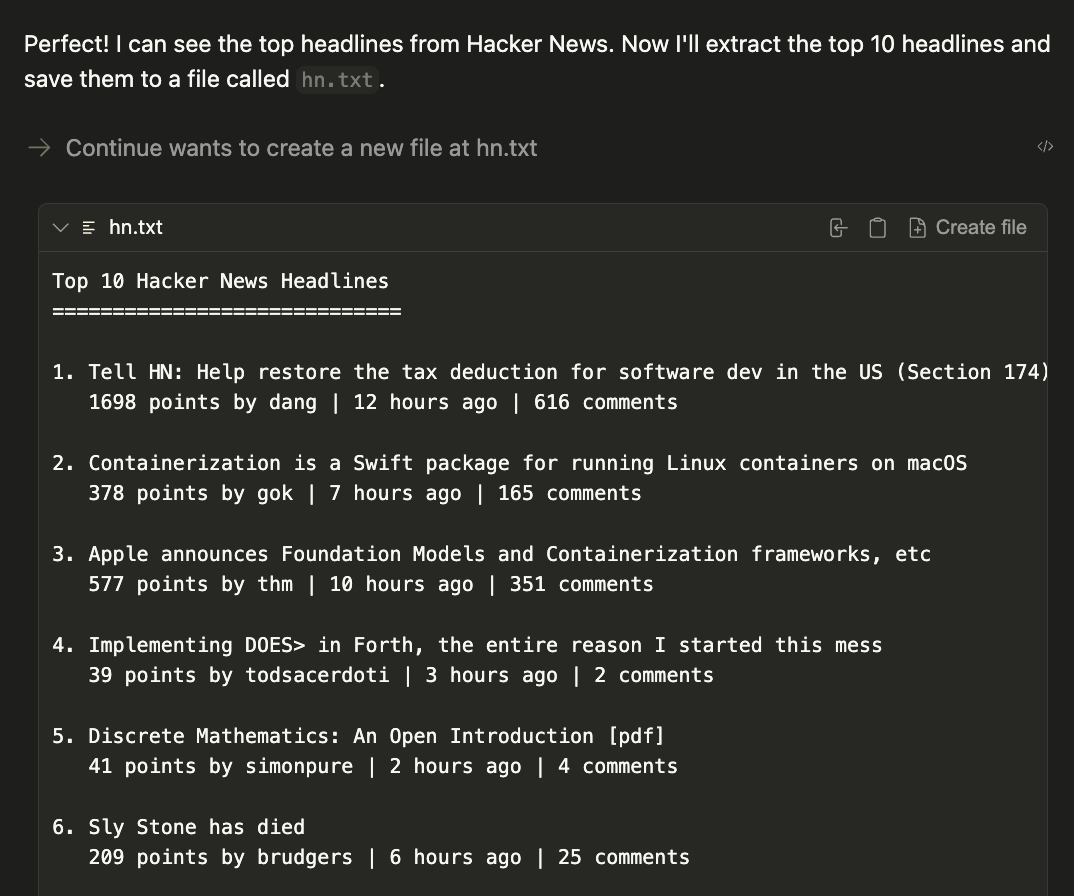
Now test your MCP server by prompting the following command:
```
Open the browser and navigate Hacker News. Save the top 10 headlines in a hn.txt file.
```
The result will be a generated file called `hn.txt` in the current working directory.
 ## How to Set Up Gobi Documentation Search with MCP
You can set up an MCP server to search the Gobi documentation directly from your config. This is particularly useful for getting help with Gobi configuration and features.
For complete setup instructions, troubleshooting, and usage examples, see the [Gobi MCP Reference](/reference/gobi-mcp).
## Using JSON MCP Format from Claude, Cursor, Cline, etc
If you're coming from another tool that uses JSON MCP format configuration files (like Claude Desktop, Cursor, or Cline), you can copy those JSON config files directly into your `.gobi/mcpServers/` directory (note the plural "Servers") and Gobi will automatically pick them up.
For example, place your JSON MCP config file at `.gobi/mcpServers/mcp.json` in your workspace.
## How to Configure MCP Servers
To set up your own MCP server, read the [MCP
quickstart](https://modelcontextprotocol.io/quickstart) and then [create an
`mcpServers`
block](https://hub.gourmand.dev/new?type=block\&blockType=mcpServers) or add a local MCP
server block to your [config file](./configuration.md):
```yaml title="config.yaml" theme={null}
# ...
mcpServers:
- name: SQLite MCP
command: npx
args:
- "-y"
- "mcp-sqlite"
- "/path/to/your/database.db"
# ...
```
When creating a standalone block file in `.gobi/mcpServers/`, remember to include the required metadata fields (`name`, `version`, `schema`) as shown in the Quick Start example above.
### How to Configure MCP Server Properties
MCP blocks follow the established syntax for blocks, with a few additional properties specific to MCP servers.
* `name`: A display name for the MCP server.
* `type`: The type of the MCP server: `sse`, `stdio`, `streamable-http`
* `command`: The command to run to start the MCP server.
* `args`: Arguments to pass to the command.
* `env`: Secrets to be injected into the command as environment variables.
### How to Choose MCP Transport Types
MCP now supports remote server connections through HTTP-based transports, expanding beyond the traditional local stdio transport method. This enables integration with cloud-hosted MCP servers and distributed architectures.
#### How to Use Server-Sent Events Transport (`sse`)
For real-time streaming communication, use the SSE transport:
```yaml theme={null}
# ...
mcpServers:
- name: Name
type: sse
url: https://....
# ...
```
#### How to Use Standard Input/Output (`stdio`)
For local MCP servers that communicate via standard input and output:
```yaml theme={null}
# ...
mcpServers:
- name: Name
type: stdio
command: npx
args:
- "@modelcontextprotocol/server-sqlite"
- "/path/to/your/database.db"
# ...
```
#### How to Use Streamable HTTP Transport
For standard HTTP-based communication with streaming capabilities:
```yaml theme={null}
# ...
mcpServers:
- name: Name
type: streamable-http
url: https://....
# ...
```
These remote transport options allow you to connect to MCP servers hosted on remote infrastructure, enabling more flexible deployment architectures and shared server resources across multiple clients.
For detailed information about transport mechanisms and their use cases, refer to the official MCP documentation on [transports](https://modelcontextprotocol.io/docs/concepts/transports#server-sent-events-sse).
### How to Work with Secrets in MCP Servers
With some MCP servers you will need to use API keys or other secrets. You can leverage locally stored environments secrets
as well as access hosted secrets in the Gobi Hub. To leverage Hub secrets, you can use the `inputs` property in your MCP env block instead of `secrets`.
```yaml theme={null}
# ...
mcpServers:
- name: Supabase MCP
command: npx
args:
- -y
- "@supabase/mcp-server-supabase@latest"
- --access-token
- ${{ secrets.SUPABASE_TOKEN }}
env:
SUPABASE_TOKEN: ${{ secrets.SUPABASE_TOKEN }}
- name: GitHub
command: npx
args:
- "-y"
- "@modelcontextprotocol/server-github"
env:
GITHUB_PERSONAL_ACCESS_TOKEN: ${{ secrets.GITHUB_PERSONAL_ACCESS_TOKEN }}
# ...
```
## How to Set Up Gobi Documentation Search with MCP
You can set up an MCP server to search the Gobi documentation directly from your config. This is particularly useful for getting help with Gobi configuration and features.
For complete setup instructions, troubleshooting, and usage examples, see the [Gobi MCP Reference](/reference/gobi-mcp).
## Using JSON MCP Format from Claude, Cursor, Cline, etc
If you're coming from another tool that uses JSON MCP format configuration files (like Claude Desktop, Cursor, or Cline), you can copy those JSON config files directly into your `.gobi/mcpServers/` directory (note the plural "Servers") and Gobi will automatically pick them up.
For example, place your JSON MCP config file at `.gobi/mcpServers/mcp.json` in your workspace.
## How to Configure MCP Servers
To set up your own MCP server, read the [MCP
quickstart](https://modelcontextprotocol.io/quickstart) and then [create an
`mcpServers`
block](https://hub.gourmand.dev/new?type=block\&blockType=mcpServers) or add a local MCP
server block to your [config file](./configuration.md):
```yaml title="config.yaml" theme={null}
# ...
mcpServers:
- name: SQLite MCP
command: npx
args:
- "-y"
- "mcp-sqlite"
- "/path/to/your/database.db"
# ...
```
When creating a standalone block file in `.gobi/mcpServers/`, remember to include the required metadata fields (`name`, `version`, `schema`) as shown in the Quick Start example above.
### How to Configure MCP Server Properties
MCP blocks follow the established syntax for blocks, with a few additional properties specific to MCP servers.
* `name`: A display name for the MCP server.
* `type`: The type of the MCP server: `sse`, `stdio`, `streamable-http`
* `command`: The command to run to start the MCP server.
* `args`: Arguments to pass to the command.
* `env`: Secrets to be injected into the command as environment variables.
### How to Choose MCP Transport Types
MCP now supports remote server connections through HTTP-based transports, expanding beyond the traditional local stdio transport method. This enables integration with cloud-hosted MCP servers and distributed architectures.
#### How to Use Server-Sent Events Transport (`sse`)
For real-time streaming communication, use the SSE transport:
```yaml theme={null}
# ...
mcpServers:
- name: Name
type: sse
url: https://....
# ...
```
#### How to Use Standard Input/Output (`stdio`)
For local MCP servers that communicate via standard input and output:
```yaml theme={null}
# ...
mcpServers:
- name: Name
type: stdio
command: npx
args:
- "@modelcontextprotocol/server-sqlite"
- "/path/to/your/database.db"
# ...
```
#### How to Use Streamable HTTP Transport
For standard HTTP-based communication with streaming capabilities:
```yaml theme={null}
# ...
mcpServers:
- name: Name
type: streamable-http
url: https://....
# ...
```
These remote transport options allow you to connect to MCP servers hosted on remote infrastructure, enabling more flexible deployment architectures and shared server resources across multiple clients.
For detailed information about transport mechanisms and their use cases, refer to the official MCP documentation on [transports](https://modelcontextprotocol.io/docs/concepts/transports#server-sent-events-sse).
### How to Work with Secrets in MCP Servers
With some MCP servers you will need to use API keys or other secrets. You can leverage locally stored environments secrets
as well as access hosted secrets in the Gobi Hub. To leverage Hub secrets, you can use the `inputs` property in your MCP env block instead of `secrets`.
```yaml theme={null}
# ...
mcpServers:
- name: Supabase MCP
command: npx
args:
- -y
- "@supabase/mcp-server-supabase@latest"
- --access-token
- ${{ secrets.SUPABASE_TOKEN }}
env:
SUPABASE_TOKEN: ${{ secrets.SUPABASE_TOKEN }}
- name: GitHub
command: npx
args:
- "-y"
- "@modelcontextprotocol/server-github"
env:
GITHUB_PERSONAL_ACCESS_TOKEN: ${{ secrets.GITHUB_PERSONAL_ACCESS_TOKEN }}
# ...
```