> ## Documentation Index
> Fetch the complete documentation index at: https://docs.gourmand.dev/llms.txt
> Use this file to discover all available pages before exploring further.
# How to Create and Manage Rules in Gobi
> Rules are used to provide system message instructions to the model for Agent mode, Chat mode, and Edit mode requests
Rules provide instructions to the model for [Agent mode](../../ide-extensions/agent/quick-start), [Chat](../../ide-extensions/chat/quick-start), and [Edit](../../ide-extensions/edit/quick-start) requests.
Rules are not included in [autocomplete](./autocomplete) or
[apply](../model-roles/apply).
## How Rules Work in Gobi
You can view the current rules by clicking the pen icon above the main toolbar:
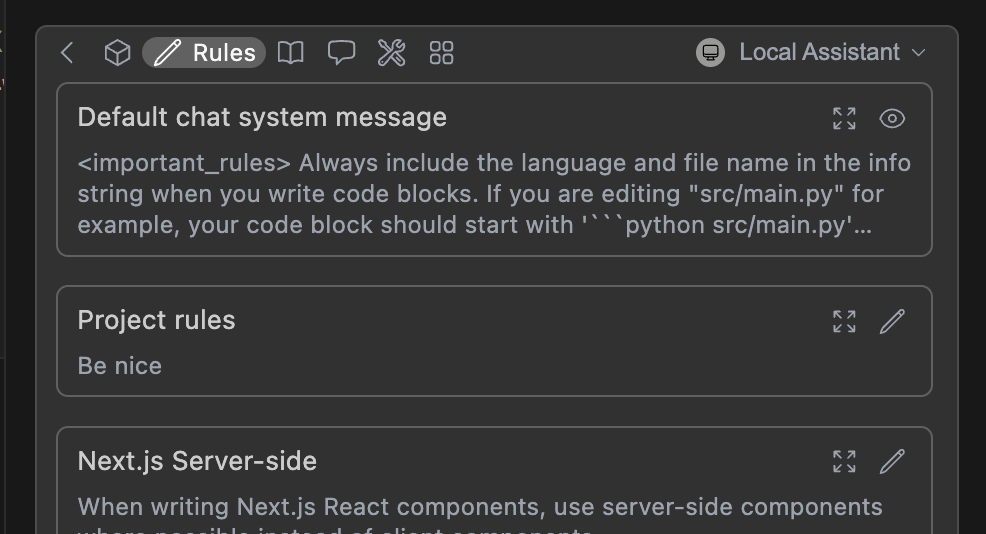 To form the system message, rules are joined with new lines, in the order they appear in the toolbar. This includes the base chat system message ([see below](#how-to-customize-chat-system-message)).
## Understanding Hub vs Local Rules Integration
**Important:** Rules created in different locations behave differently and have different synchronization patterns.
Gobi supports two types of rules with different behaviors:
* **Location**: `.gobi/rules` folder in your workspace
* **Visibility**: Automatically visible when using Hub assistants
* **Creation**: Add rules button in VSCode or manual file creation
* **File Management**: Creates actual `.md` files you can edit directly
* **Location**: Stored on Gobi Hub, referenced in config.yaml
* **Visibility**: Only appear when referenced in assistant configuration
* **Creation**: Created directly on Hub or copied from local rules
* **File Management**: No local files created, managed through Hub interface
### How Rules Are Applied
When using Gobi, rules are loaded in this order:
1. **Hub assistant rules** (if using a Hub-based assistant)
2. **Referenced Hub rules** (via `uses:` in config.yaml)
3. **Local workspace rules** (from `.gobi/rules` folder)
4. **Global rules** (from `~/.gobi/rules` folder)
**TL;DR**: Local rules show up automatically when using Hub assistants. Hub rules show up automatically when referenced in your config.
## Quick Start: How to Create Your First Rule File
Below is a quick example of setting up a new rule file:
1. Create a folder called `.gobi/rules` at the top level of your workspace
2. Add a file called `pirates-rule.md` to this folder.
3. Write the following contents to `pirates-rule.md` and save.
```md title=".gobi/rules/pirates-rule.md" theme={null}
---
name: Pirate rule
---
- Talk like a pirate.
```
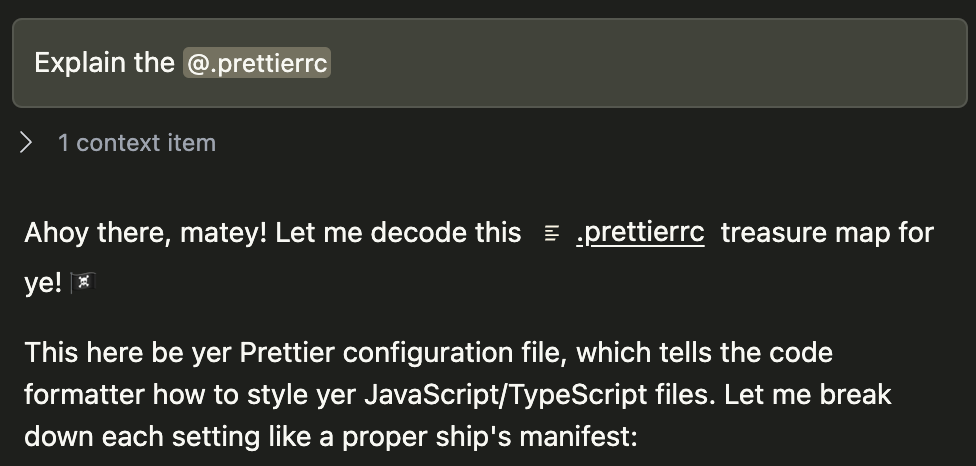
Now test your rules by asking a question about a file in chat.
To form the system message, rules are joined with new lines, in the order they appear in the toolbar. This includes the base chat system message ([see below](#how-to-customize-chat-system-message)).
## Understanding Hub vs Local Rules Integration
**Important:** Rules created in different locations behave differently and have different synchronization patterns.
Gobi supports two types of rules with different behaviors:
* **Location**: `.gobi/rules` folder in your workspace
* **Visibility**: Automatically visible when using Hub assistants
* **Creation**: Add rules button in VSCode or manual file creation
* **File Management**: Creates actual `.md` files you can edit directly
* **Location**: Stored on Gobi Hub, referenced in config.yaml
* **Visibility**: Only appear when referenced in assistant configuration
* **Creation**: Created directly on Hub or copied from local rules
* **File Management**: No local files created, managed through Hub interface
### How Rules Are Applied
When using Gobi, rules are loaded in this order:
1. **Hub assistant rules** (if using a Hub-based assistant)
2. **Referenced Hub rules** (via `uses:` in config.yaml)
3. **Local workspace rules** (from `.gobi/rules` folder)
4. **Global rules** (from `~/.gobi/rules` folder)
**TL;DR**: Local rules show up automatically when using Hub assistants. Hub rules show up automatically when referenced in your config.
## Quick Start: How to Create Your First Rule File
Below is a quick example of setting up a new rule file:
1. Create a folder called `.gobi/rules` at the top level of your workspace
2. Add a file called `pirates-rule.md` to this folder.
3. Write the following contents to `pirates-rule.md` and save.
```md title=".gobi/rules/pirates-rule.md" theme={null}
---
name: Pirate rule
---
- Talk like a pirate.
```
Now test your rules by asking a question about a file in chat.
 ## How to Create Rules Blocks
### Creating Local Rules
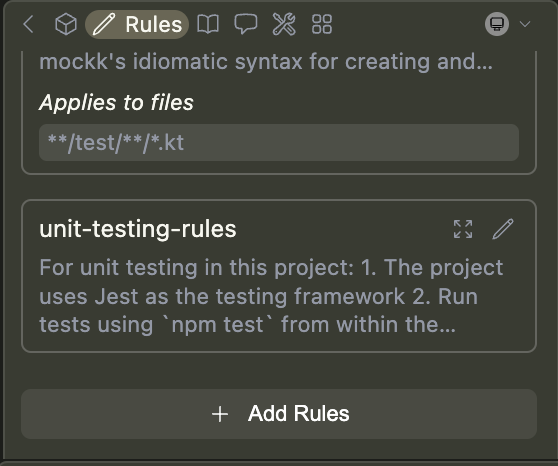
Rules can be added locally using the "Add Rules" button.
## How to Create Rules Blocks
### Creating Local Rules
Rules can be added locally using the "Add Rules" button.
 **Automatically create local rule blocks**: When in Agent mode, you can prompt the agent to create a rule for you using the `create_rule_block` tool if enabled.
For example, you can say "Create a rule for this", and a rule will be created for you in `.gobi/rules` based on your conversation.
### Creating Hub Rules
Rules can also be created and managed on the Gobi Hub:
1. **Browse existing rules**: [Explore available rules](https://hub.gourmand.dev)
2. **Create new rules**: [Create your own](https://hub.gourmand.dev/new?type=block\&blockType=rules) in the Hub
3. **Copy from local rules**: Copy/paste content from your `.gobi/rules` files to create Hub rules
### Working Between Hub and Local Rules
To use Hub rules in your local setup:
1. Reference them in your `config.yaml`:
```yaml theme={null}
rules:
- uses: username/my-hub-rule
```
2. The rule will automatically appear in your rules toolbar
3. **Note**: No local file is created - the rule exists only on the Hub
To move local rules to the Hub:
1. Copy the content from your `.gobi/rules/rule-name.md` file
2. Go to [Create new rule](https://hub.gourmand.dev/new?type=block\&blockType=rules)
3. Paste the content and configure the rule
4. Optionally, remove the local file and reference the Hub rule in your config
**Current Limitation**: There's no automatic sync from local to Hub. You must manually copy/paste rule content.
### How to Configure Rule Properties and Syntax
Rules were originally defined in YAML format (demonstrated below), but we
introduced Markdown for easier editing. While both are still supported, we
recommend Markdown.
Rules blocks can be simple text, written in YAML configuration files, or as Markdown (`.md`) files. They can have the following properties:
* `name` (**required** for YAML): A display name/title for the rule
* `globs` (optional): When files are provided as context that match this glob pattern, the rule will be included. This can be either a single pattern (e.g., `"**/*.{ts,tsx}"`) or an array of patterns (e.g., `["src/**/*.ts", "tests/**/*.ts"]`).
* `regex` (optional): When files are provided as context and their content matches this regex pattern, the rule will be included. This can be either a single pattern (e.g., `"^import .* from '.*';$"`) or an array of patterns (e.g., `["^import .* from '.*';$", "^export .* from '.*';$"]`).
* `description` (optional): A description for the rule. Agents may read this description when `alwaysApply` is false to determine whether the rule should be pulled into context.
* `alwaysApply`: Determines whether the rule is always included. Behavior is described below:
* `true`: Always included, regardless of file context
* `false`: Included if globs exist AND match file context, or the agent decides to pull the rule into context based on its description
* `undefined` (default behavior): Included if no globs exist OR globs exist and match
```md title="doc-standards.md" theme={null}
---
name: Documentation Standards
globs: docs/**/*.{md,mdx}
alwaysApply: false
description: Standards for writing and maintaining Gobi Docs
---
# Gobi Docs Standards
- Follow Mintlify documentation standards
- Include YAML frontmatter with title, description, and keywords
- Use consistent heading hierarchy starting with h2 (##)
- Include relevant Admonition components for tips, warnings, and info
- Use descriptive alt text for images
- Include cross-references to related documentation
- Reference other docs with relative paths
- Keep paragraphs concise and scannable
- Use code blocks with appropriate language tags
```
```yaml title="doc-standards.yaml" theme={null}
name: Documentation Standards
version: 1.0.0
schema: v1
rules:
- name: Documentation Standards
globs: docs/**/*.{md,mdx}
alwaysApply: false
rule: >
- Follow Mintlify documentation standards
- Include YAML frontmatter with title, description, and keywords
- Use consistent heading hierarchy starting with h2 (##)
- Include relevant Admonition components for tips, warnings, and info
- Use descriptive alt text for images
- Include cross-references to related documentation
- Reference other docs with relative paths
- Keep paragraphs concise and scannable
- Use code blocks with appropriate language tags
```
### How to Set Up Project-Specific Rules
You can create project-specific rules by adding a `.gobi/rules` folder to the root of your project and adding new rule files.
Rules files are loaded in lexicographical order, so you can prefix them with numbers to control the order in which they are applied. For example: `01-general.md`, `02-frontend.md`, `03-backend.md`.
### Example: How to Create TypeScript-Specific Rules
```md title=".gobi/rules/typescript.md" theme={null}
---
name: TypeScript Best Practices
globs: ["**/*.ts", "**/*.tsx"]
---
# TypeScript Rules
- Always use TypeScript interfaces for object shapes
- Use type aliases sparingly, prefer interfaces
- Include proper JSDoc comments for public APIs
- Use strict null checks
- Prefer readonly arrays and properties where possible
- modularize components into smaller, reusable pieces
```
## Troubleshooting Rules
### Issue: Rules Created in Different Places Don't Sync
**Problem**: You created rules in the Hub but don't see them in VSCode, or vice versa.
**Solution**:
* **Hub rules** only appear when referenced in your config.yaml using the `uses:` syntax
* **Local rules** automatically appear when using Hub assistants
* There's currently no automatic bidirectional sync
### Issue: "Edit" Links Point to Wrong Location
**Problem**: When you click "Edit" on a rule in VSCode, it tries to open the Hub even though the rule is local, or shows an incorrect URL.
**Root Cause**: This happens when you have a mix of local and Hub rules, and Gobi can't properly determine where each rule originates.
**Workaround**:
1. **For local rules**: Navigate directly to `.gobi/rules/` folder and edit the `.md` file
2. **For Hub rules**: Go directly to your assistant page on [Gobi Hub](https://hub.gourmand.dev) and edit from there
3. Keep track of which rules are local vs Hub-based to avoid confusion
**Known Issue**: This link accuracy problem is tracked in [Linear issue CON-3084](https://linear.app/gobi/issue/CON-3084) and will be fixed in a future update.
### Issue: Rules Don't Appear in Assistant
**Problem**: Your rules exist but don't show up in the rules toolbar.
**Check These**:
1. **File location**: Ensure local rules are in `.gobi/rules/` (not `.gobi/rule/`)
2. **File format**: Rules should be `.md` files with proper YAML frontmatter
3. **Config reference**: Hub rules must be referenced in `config.yaml`
4. **Assistant type**: Ensure you're using the correct assistant (local vs Hub)
### How to Customize Chat System Message
Gobi includes a simple default system message for [Agent mode](../../ide-extensions/agent/quick-start) and [Chat](../../ide-extensions/chat/quick-start) requests, to help the model provide reliable codeblock formats in its output.
This can be viewed in the rules section of the toolbar (see above), or in the source code [here](https://github.com/gourmand/gobi/blob/main/core/llm/constructMessages.ts#L4).
Advanced users can override this system message for a specific model if needed by using `chatOptions.baseSystemMessage`. See the [`config.yaml` reference](/reference#models).
**Automatically create local rule blocks**: When in Agent mode, you can prompt the agent to create a rule for you using the `create_rule_block` tool if enabled.
For example, you can say "Create a rule for this", and a rule will be created for you in `.gobi/rules` based on your conversation.
### Creating Hub Rules
Rules can also be created and managed on the Gobi Hub:
1. **Browse existing rules**: [Explore available rules](https://hub.gourmand.dev)
2. **Create new rules**: [Create your own](https://hub.gourmand.dev/new?type=block\&blockType=rules) in the Hub
3. **Copy from local rules**: Copy/paste content from your `.gobi/rules` files to create Hub rules
### Working Between Hub and Local Rules
To use Hub rules in your local setup:
1. Reference them in your `config.yaml`:
```yaml theme={null}
rules:
- uses: username/my-hub-rule
```
2. The rule will automatically appear in your rules toolbar
3. **Note**: No local file is created - the rule exists only on the Hub
To move local rules to the Hub:
1. Copy the content from your `.gobi/rules/rule-name.md` file
2. Go to [Create new rule](https://hub.gourmand.dev/new?type=block\&blockType=rules)
3. Paste the content and configure the rule
4. Optionally, remove the local file and reference the Hub rule in your config
**Current Limitation**: There's no automatic sync from local to Hub. You must manually copy/paste rule content.
### How to Configure Rule Properties and Syntax
Rules were originally defined in YAML format (demonstrated below), but we
introduced Markdown for easier editing. While both are still supported, we
recommend Markdown.
Rules blocks can be simple text, written in YAML configuration files, or as Markdown (`.md`) files. They can have the following properties:
* `name` (**required** for YAML): A display name/title for the rule
* `globs` (optional): When files are provided as context that match this glob pattern, the rule will be included. This can be either a single pattern (e.g., `"**/*.{ts,tsx}"`) or an array of patterns (e.g., `["src/**/*.ts", "tests/**/*.ts"]`).
* `regex` (optional): When files are provided as context and their content matches this regex pattern, the rule will be included. This can be either a single pattern (e.g., `"^import .* from '.*';$"`) or an array of patterns (e.g., `["^import .* from '.*';$", "^export .* from '.*';$"]`).
* `description` (optional): A description for the rule. Agents may read this description when `alwaysApply` is false to determine whether the rule should be pulled into context.
* `alwaysApply`: Determines whether the rule is always included. Behavior is described below:
* `true`: Always included, regardless of file context
* `false`: Included if globs exist AND match file context, or the agent decides to pull the rule into context based on its description
* `undefined` (default behavior): Included if no globs exist OR globs exist and match
```md title="doc-standards.md" theme={null}
---
name: Documentation Standards
globs: docs/**/*.{md,mdx}
alwaysApply: false
description: Standards for writing and maintaining Gobi Docs
---
# Gobi Docs Standards
- Follow Mintlify documentation standards
- Include YAML frontmatter with title, description, and keywords
- Use consistent heading hierarchy starting with h2 (##)
- Include relevant Admonition components for tips, warnings, and info
- Use descriptive alt text for images
- Include cross-references to related documentation
- Reference other docs with relative paths
- Keep paragraphs concise and scannable
- Use code blocks with appropriate language tags
```
```yaml title="doc-standards.yaml" theme={null}
name: Documentation Standards
version: 1.0.0
schema: v1
rules:
- name: Documentation Standards
globs: docs/**/*.{md,mdx}
alwaysApply: false
rule: >
- Follow Mintlify documentation standards
- Include YAML frontmatter with title, description, and keywords
- Use consistent heading hierarchy starting with h2 (##)
- Include relevant Admonition components for tips, warnings, and info
- Use descriptive alt text for images
- Include cross-references to related documentation
- Reference other docs with relative paths
- Keep paragraphs concise and scannable
- Use code blocks with appropriate language tags
```
### How to Set Up Project-Specific Rules
You can create project-specific rules by adding a `.gobi/rules` folder to the root of your project and adding new rule files.
Rules files are loaded in lexicographical order, so you can prefix them with numbers to control the order in which they are applied. For example: `01-general.md`, `02-frontend.md`, `03-backend.md`.
### Example: How to Create TypeScript-Specific Rules
```md title=".gobi/rules/typescript.md" theme={null}
---
name: TypeScript Best Practices
globs: ["**/*.ts", "**/*.tsx"]
---
# TypeScript Rules
- Always use TypeScript interfaces for object shapes
- Use type aliases sparingly, prefer interfaces
- Include proper JSDoc comments for public APIs
- Use strict null checks
- Prefer readonly arrays and properties where possible
- modularize components into smaller, reusable pieces
```
## Troubleshooting Rules
### Issue: Rules Created in Different Places Don't Sync
**Problem**: You created rules in the Hub but don't see them in VSCode, or vice versa.
**Solution**:
* **Hub rules** only appear when referenced in your config.yaml using the `uses:` syntax
* **Local rules** automatically appear when using Hub assistants
* There's currently no automatic bidirectional sync
### Issue: "Edit" Links Point to Wrong Location
**Problem**: When you click "Edit" on a rule in VSCode, it tries to open the Hub even though the rule is local, or shows an incorrect URL.
**Root Cause**: This happens when you have a mix of local and Hub rules, and Gobi can't properly determine where each rule originates.
**Workaround**:
1. **For local rules**: Navigate directly to `.gobi/rules/` folder and edit the `.md` file
2. **For Hub rules**: Go directly to your assistant page on [Gobi Hub](https://hub.gourmand.dev) and edit from there
3. Keep track of which rules are local vs Hub-based to avoid confusion
**Known Issue**: This link accuracy problem is tracked in [Linear issue CON-3084](https://linear.app/gobi/issue/CON-3084) and will be fixed in a future update.
### Issue: Rules Don't Appear in Assistant
**Problem**: Your rules exist but don't show up in the rules toolbar.
**Check These**:
1. **File location**: Ensure local rules are in `.gobi/rules/` (not `.gobi/rule/`)
2. **File format**: Rules should be `.md` files with proper YAML frontmatter
3. **Config reference**: Hub rules must be referenced in `config.yaml`
4. **Assistant type**: Ensure you're using the correct assistant (local vs Hub)
### How to Customize Chat System Message
Gobi includes a simple default system message for [Agent mode](../../ide-extensions/agent/quick-start) and [Chat](../../ide-extensions/chat/quick-start) requests, to help the model provide reliable codeblock formats in its output.
This can be viewed in the rules section of the toolbar (see above), or in the source code [here](https://github.com/gourmand/gobi/blob/main/core/llm/constructMessages.ts#L4).
Advanced users can override this system message for a specific model if needed by using `chatOptions.baseSystemMessage`. See the [`config.yaml` reference](/reference#models).