> ## Documentation Index
> Fetch the complete documentation index at: https://docs.gourmand.dev/llms.txt
> Use this file to discover all available pages before exploring further.
# Using Ollama with Gobi: A Developer's Guide
> Complete guide to setting up Ollama with Gobi for local AI development. Learn installation, configuration, model selection, performance optimization, and troubleshooting for privacy-focused offline coding assistance
## What Are the Prerequisites for Using Ollama
Before getting started, ensure your system meets these requirements:
* Operating System: macOS, Linux, or Windows
* RAM: Minimum 8GB (16GB+ recommended)
* Storage: At least 10GB free space
* Gobi extension installed
## How to Install Ollama - Step-by-Step
### Step 1: Install Ollama
Choose the installation method for your operating system:
```
# macOS
brew install ollama
# Linux
curl -fsSL https://ollama.ai/install.sh | sh
# Windows
# Download from ollama.ai
```
### Step 2: Start Ollama Service
After installation, start the Ollama service:
```bash theme={null}
# Check Ollama version - verify it's installed
ollama --version
# Start Ollama (runs in background)
ollama serve
# Verify it's running
curl http://localhost:11434
# Should return "Ollama is running"
```
### Step 3: Download Models
**Important**: Always use `ollama pull` instead of `ollama run` to download
models. The `run` command starts an interactive session which isn't needed for
Gobi.
Download models using the exact tag specified:
```bash theme={null}
# Pull models with specific tags
ollama pull deepseek-r1:32b # 32B parameter version
ollama pull deepseek-r1:latest # Latest/default version
ollama pull mistral:latest
ollama pull qwen2.5-coder:1.5b
# List all downloaded models
ollama list
```
**Common Model Tags:**
* `:latest` - Default version (used if no tag specified)
* `:32b`, `:7b`, `:1.5b` - Parameter count versions
* `:instruct`, `:base` - Model variants
If a model page shows `deepseek-r1:32b` on Ollama's website, you must pull it
with that exact tag. Using just `deepseek-r1` will pull `:latest` which may be
a different size.
## How to Configure Ollama with Gobi
There are multiple ways to configure Ollama models in Gobi:
### Method 1: Using Hub Model Blocks in Local config.yaml
The easiest way is to use [pre-configured model blocks](/reference#local-blocks) from the Gobi Hub in your local configuration:
```yaml title="~/.gobi/configs/config.yaml" theme={null}
name: My Local Config
version: 0.0.1
schema: v1
models:
- uses: ollama/deepseek-r1-32b
- uses: ollama/qwen2.5-coder-7b
- uses: ollama/gpt-oss-20b
```
**Important**: Hub blocks only provide configuration - you still need to pull
the model locally. The hub block `ollama/deepseek-r1-32b` configures Gobi
to use `model: deepseek-r1:32b`, but the actual model must be installed:
```bash theme={null}
# Check what the hub block expects (view on hub.gourmand.dev)
# Then pull that exact model tag locally
ollama pull deepseek-r1:32b # Required for ollama/deepseek-r1-32b hub block
```
If the model isn't installed, Ollama will return:
`404 model "deepseek-r1:32b" not found, try pulling it first`
### Method 2: Using Autodetect
Gobi can automatically detect available Ollama models. You can configure this in your YAML:
```yaml title="~/.gobi/config.yaml" theme={null}
models:
- name: Autodetect
provider: ollama
model: AUTODETECT
roles:
- chat
- edit
- apply
- rerank
- autocomplete
```
Or use it through the GUI:
1. Click on the model selector dropdown
2. Select "Autodetect" option
3. Gobi will scan for available Ollama models
4. Select your desired model from the detected list
The Autodetect feature scans your local Ollama installation and lists all
available models. When set to `AUTODETECT`, Gobi will dynamically populate
the model list based on what's installed locally via `ollama list`. This is
useful for quickly switching between models without manual configuration. For
any roles not covered by the detected models, you may need to manually
configure them.
You can update `apiBase` with the IP address of a remote machine serving Ollama.
### Method 3: Manual Configuration
For custom configurations or models not on the hub:
```yaml theme={null}
models:
- name: DeepSeek R1 32B
provider: ollama
model: deepseek-r1:32b # Must match exactly what `ollama list` shows
apiBase: http://localhost:11434
roles:
- chat
- edit
capabilities: # Add if not auto-detected
- tool_use
- name: Qwen2.5-Coder 1.5B
provider: ollama
model: qwen2.5-coder:1.5b
roles:
- autocomplete
```
### Model Capabilities and Tool Support
Some Ollama models support tools (function calling) which is required for Agent mode. However, not all models that claim tool support work correctly:
#### Checking Tool Support
```yaml theme={null}
models:
- name: DeepSeek R1
provider: ollama
model: deepseek-r1:latest
capabilities:
- tool_use # Add this to enable tools
```
**Known Issue**: Some models like DeepSeek R1 may show "Agent mode is not
supported" or "does not support tools" even with capabilities configured. This
is a known limitation where the model's actual tool support differs from its
advertised capabilities.
#### If Agent Mode Shows "Not Supported"
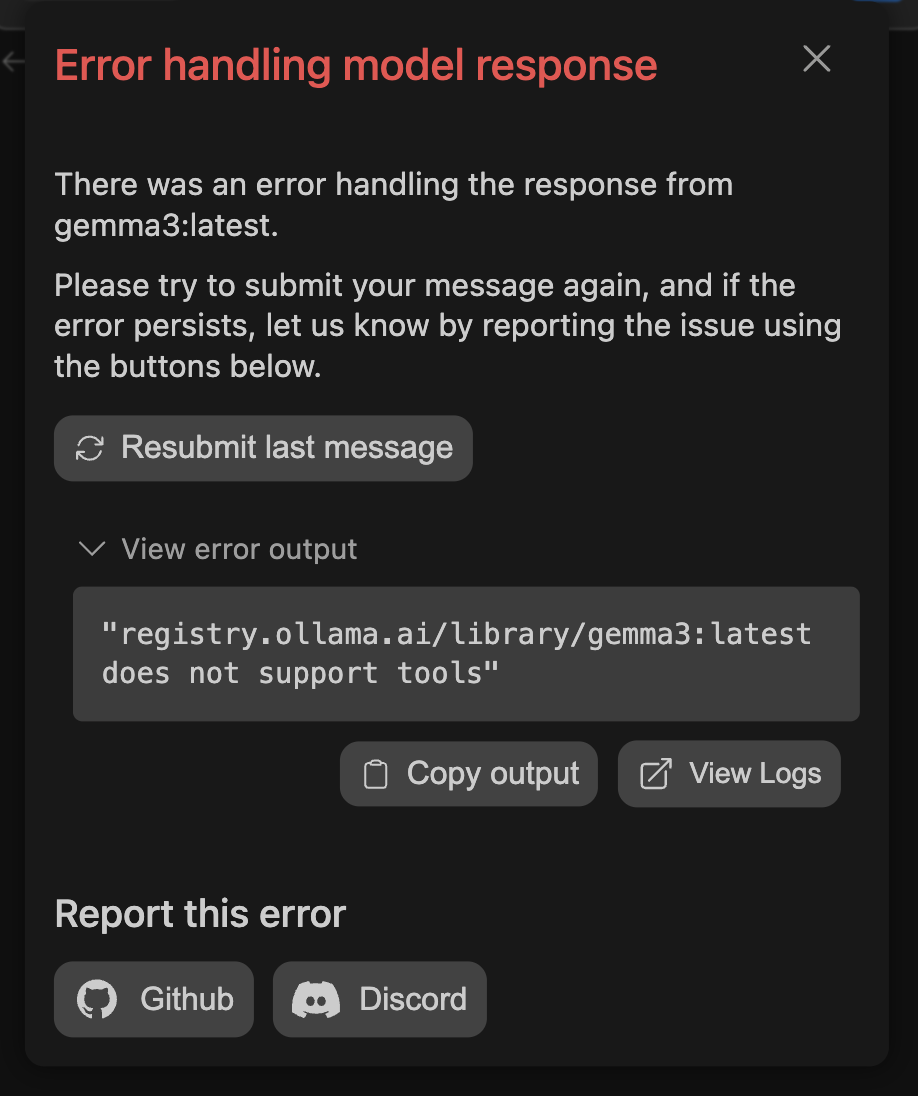 1. First, add `capabilities: [tool_use]` to your model config
2. If you still get errors, the model may not actually support tools despite documentation
3. Use a different model known to work with tools (e.g., Llama 3.1, Mistral)
4. Alternatively, you can turn on [System Message tools](/ide-extensions/agent/model-setup#how-system-message-tools-work)
See the [Model Capabilities guide](/customize/deep-dives/model-capabilities) for more details.
### How to Configure Advanced Settings
For optimal performance, consider these advanced configuration options:
```yaml theme={null}
models:
- name: Optimized DeepSeek
provider: ollama
model: deepseek-r1:32b
contextLength: 8192 # Adjust context window (default varies by model)
completionOptions:
temperature: 0.7 # Controls randomness (0.0-1.0)
top_p: 0.9 # Nucleus sampling threshold
top_k: 40 # Top-k sampling
num_predict: 2048 # Max tokens to generate
# Ollama-specific options (set via environment or modelfile)
# num_gpu: 35 # Number of GPU layers to offload
# num_thread: 8 # CPU threads to use
```
For GPU acceleration and memory tuning, create an Ollama Modelfile:
```
# Create custom model with optimizations
FROM deepseek-r1:32b
PARAMETER num_gpu 35
PARAMETER num_thread 8
PARAMETER num_ctx 4096
```
## What Are the Best Practices for Ollama
### How to Choose the Right Model
Choose models based on your specific needs (see [recommended models](/customization/models#recommended-models) for more options):
1. **Code Generation**:
* `qwen2.5-coder:7b` - Excellent for code completion
* `codellama:13b` - Strong general coding support
* `deepseek-coder:6.7b` - Fast and efficient
2. **Chat & Reasoning**:
* `llama3.1:8b` - Latest Llama with tool support
* `mistral:7b` - Fast and versatile
* `deepseek-r1:32b` - Advanced reasoning capabilities
3. **Autocomplete**:
* `qwen2.5-coder:1.5b` - Lightweight and fast
* `starcoder2:3b` - Optimized for code completion
4. **Memory Requirements**:
* 1.5B-3B models: \~4GB RAM
* 7B models: \~8GB RAM
* 13B models: \~16GB RAM
* 32B models: \~32GB RAM
### How to Optimize Performance
To get the best performance from Ollama:
* Monitor system resources with `ollama ps` to see memory usage
* Adjust context window size based on available RAM
* Use appropriate model sizes for your hardware
* Enable GPU acceleration when available (NVIDIA CUDA or AMD ROCm)
* Use `ollama logs` to debug performance issues
## How to Troubleshoot Ollama Issues
### Common Configuration Problems
#### "404 model not found, try pulling it first"
This error occurs when the model isn't installed locally:
**Problem**: Using a hub block or config that references a model not yet pulled
**Solution**:
```bash theme={null}
# Check what models you have
ollama list
# Pull the exact model version needed
ollama pull model-name:tag # e.g., deepseek-r1:32b
```
#### Model Tag Mismatches
**Problem**: `ollama pull deepseek-r1` installs `:latest` but hub block expects `:32b`
**Solution**: Always pull with the exact tag:
```bash theme={null}
# Wrong - pulls :latest
ollama pull deepseek-r1
# Right - pulls specific version
ollama pull deepseek-r1:32b
```
#### "Agent mode is not supported"
**Problem**: Model doesn't support tools/function calling
**Solutions**:
1. Add `capabilities: [tool_use]` to your model config
2. If still not working, the model may not actually support tools
3. Switch to a model with confirmed tool support (Llama 3.1, Mistral)
#### Using Hub Blocks in Local Config
**Problem**: Unclear how to use hub models locally
**Solution**: Create a local agent file:
```yaml theme={null}
# ~/.gobi/configs/config.yaml
name: Local Config
version: 0.0.1
schema: v1
models:
- uses: ollama/model-name
```
### How to Fix Connection Problems
* Verify Ollama is running: `curl http://localhost:11434`
* Check service status: `systemctl status ollama` (Linux)
* Ensure port 11434 is not blocked by firewall
* For remote connections, set `OLLAMA_HOST=0.0.0.0:11434`
### How to Resolve Performance Issues
* Insufficient RAM: Use smaller models (7B instead of 32B)
* Model too large: Check available memory with `ollama ps`
* GPU issues: Verify CUDA/ROCm installation for GPU acceleration
* Slow generation: Adjust `num_gpu` layers in model configuration
* Check system diagnostics: `ollama ps` for active models and memory usage
## What Are Example Workflows with Ollama
### How to Use Ollama for Code Generation
```python theme={null}
# Example: Generate a FastAPI endpoint
from fastapi import FastAPI, HTTPException
from pydantic import BaseModel
app = FastAPI()
class User(BaseModel):
name: str
email: str
age: int
@app.post("/users/")
async def create_user(user: User):
# Gobi will help complete this implementation
# Use Cmd+I (Mac) or Ctrl+I (Windows/Linux) to generate code
pass
```
### How to Use Ollama for Code Review
Use Gobi with Ollama to:
* Analyze code quality
* Suggest improvements
* Identify potential bugs
* Generate documentation
## Conclusion
Ollama with Gobi provides a powerful local development environment for AI-assisted coding. You now have complete control over your AI models, ensuring privacy and enabling offline development workflows.
***
*This guide is based on Ollama v0.11.x and Gobi v1.1.x. Please check for updates regularly.*
1. First, add `capabilities: [tool_use]` to your model config
2. If you still get errors, the model may not actually support tools despite documentation
3. Use a different model known to work with tools (e.g., Llama 3.1, Mistral)
4. Alternatively, you can turn on [System Message tools](/ide-extensions/agent/model-setup#how-system-message-tools-work)
See the [Model Capabilities guide](/customize/deep-dives/model-capabilities) for more details.
### How to Configure Advanced Settings
For optimal performance, consider these advanced configuration options:
```yaml theme={null}
models:
- name: Optimized DeepSeek
provider: ollama
model: deepseek-r1:32b
contextLength: 8192 # Adjust context window (default varies by model)
completionOptions:
temperature: 0.7 # Controls randomness (0.0-1.0)
top_p: 0.9 # Nucleus sampling threshold
top_k: 40 # Top-k sampling
num_predict: 2048 # Max tokens to generate
# Ollama-specific options (set via environment or modelfile)
# num_gpu: 35 # Number of GPU layers to offload
# num_thread: 8 # CPU threads to use
```
For GPU acceleration and memory tuning, create an Ollama Modelfile:
```
# Create custom model with optimizations
FROM deepseek-r1:32b
PARAMETER num_gpu 35
PARAMETER num_thread 8
PARAMETER num_ctx 4096
```
## What Are the Best Practices for Ollama
### How to Choose the Right Model
Choose models based on your specific needs (see [recommended models](/customization/models#recommended-models) for more options):
1. **Code Generation**:
* `qwen2.5-coder:7b` - Excellent for code completion
* `codellama:13b` - Strong general coding support
* `deepseek-coder:6.7b` - Fast and efficient
2. **Chat & Reasoning**:
* `llama3.1:8b` - Latest Llama with tool support
* `mistral:7b` - Fast and versatile
* `deepseek-r1:32b` - Advanced reasoning capabilities
3. **Autocomplete**:
* `qwen2.5-coder:1.5b` - Lightweight and fast
* `starcoder2:3b` - Optimized for code completion
4. **Memory Requirements**:
* 1.5B-3B models: \~4GB RAM
* 7B models: \~8GB RAM
* 13B models: \~16GB RAM
* 32B models: \~32GB RAM
### How to Optimize Performance
To get the best performance from Ollama:
* Monitor system resources with `ollama ps` to see memory usage
* Adjust context window size based on available RAM
* Use appropriate model sizes for your hardware
* Enable GPU acceleration when available (NVIDIA CUDA or AMD ROCm)
* Use `ollama logs` to debug performance issues
## How to Troubleshoot Ollama Issues
### Common Configuration Problems
#### "404 model not found, try pulling it first"
This error occurs when the model isn't installed locally:
**Problem**: Using a hub block or config that references a model not yet pulled
**Solution**:
```bash theme={null}
# Check what models you have
ollama list
# Pull the exact model version needed
ollama pull model-name:tag # e.g., deepseek-r1:32b
```
#### Model Tag Mismatches
**Problem**: `ollama pull deepseek-r1` installs `:latest` but hub block expects `:32b`
**Solution**: Always pull with the exact tag:
```bash theme={null}
# Wrong - pulls :latest
ollama pull deepseek-r1
# Right - pulls specific version
ollama pull deepseek-r1:32b
```
#### "Agent mode is not supported"
**Problem**: Model doesn't support tools/function calling
**Solutions**:
1. Add `capabilities: [tool_use]` to your model config
2. If still not working, the model may not actually support tools
3. Switch to a model with confirmed tool support (Llama 3.1, Mistral)
#### Using Hub Blocks in Local Config
**Problem**: Unclear how to use hub models locally
**Solution**: Create a local agent file:
```yaml theme={null}
# ~/.gobi/configs/config.yaml
name: Local Config
version: 0.0.1
schema: v1
models:
- uses: ollama/model-name
```
### How to Fix Connection Problems
* Verify Ollama is running: `curl http://localhost:11434`
* Check service status: `systemctl status ollama` (Linux)
* Ensure port 11434 is not blocked by firewall
* For remote connections, set `OLLAMA_HOST=0.0.0.0:11434`
### How to Resolve Performance Issues
* Insufficient RAM: Use smaller models (7B instead of 32B)
* Model too large: Check available memory with `ollama ps`
* GPU issues: Verify CUDA/ROCm installation for GPU acceleration
* Slow generation: Adjust `num_gpu` layers in model configuration
* Check system diagnostics: `ollama ps` for active models and memory usage
## What Are Example Workflows with Ollama
### How to Use Ollama for Code Generation
```python theme={null}
# Example: Generate a FastAPI endpoint
from fastapi import FastAPI, HTTPException
from pydantic import BaseModel
app = FastAPI()
class User(BaseModel):
name: str
email: str
age: int
@app.post("/users/")
async def create_user(user: User):
# Gobi will help complete this implementation
# Use Cmd+I (Mac) or Ctrl+I (Windows/Linux) to generate code
pass
```
### How to Use Ollama for Code Review
Use Gobi with Ollama to:
* Analyze code quality
* Suggest improvements
* Identify potential bugs
* Generate documentation
## Conclusion
Ollama with Gobi provides a powerful local development environment for AI-assisted coding. You now have complete control over your AI models, ensuring privacy and enabling offline development workflows.
***
*This guide is based on Ollama v0.11.x and Gobi v1.1.x. Please check for updates regularly.*