> ## Documentation Index
> Fetch the complete documentation index at: https://docs.gourmand.dev/llms.txt
> Use this file to discover all available pages before exploring further.
# How to create your own config option
> Learn how to create and remix reusable configuration options in Gobi Hub for sharing configuration components like models, prompts, and tools with customizable inputs and template variables
## How to Remix a Block
You should remix a block if you want to use it after some modifications.
By clicking the “remix” button, you’ll be taken to the “Create a remix” page.
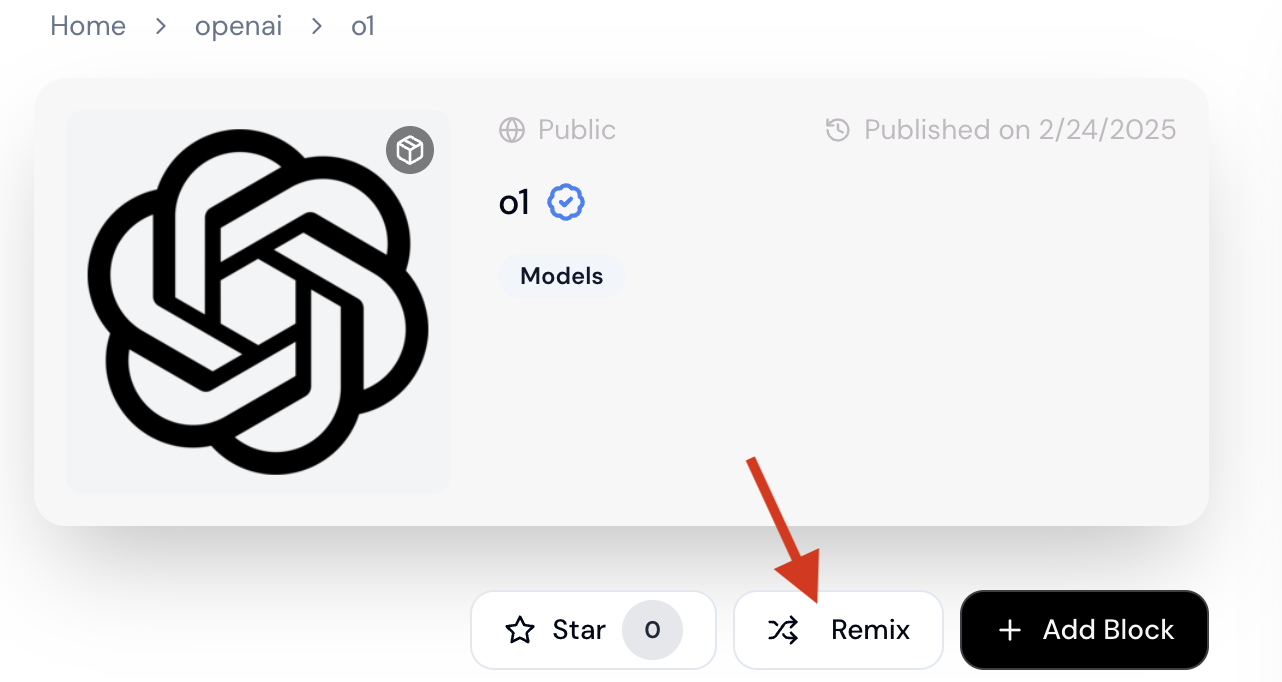 Once here, you’ll be able to 1) edit YAML configuration for the block and 2) change name, description, icon, etc. Clicking “Create block” will make this block available for use in an agent.
## How to Create a Block from Scratch
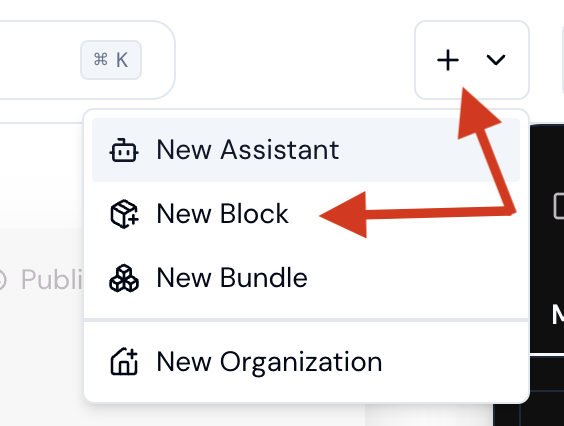
To create a block from scratch, you will need to click “New block” in the top bar.
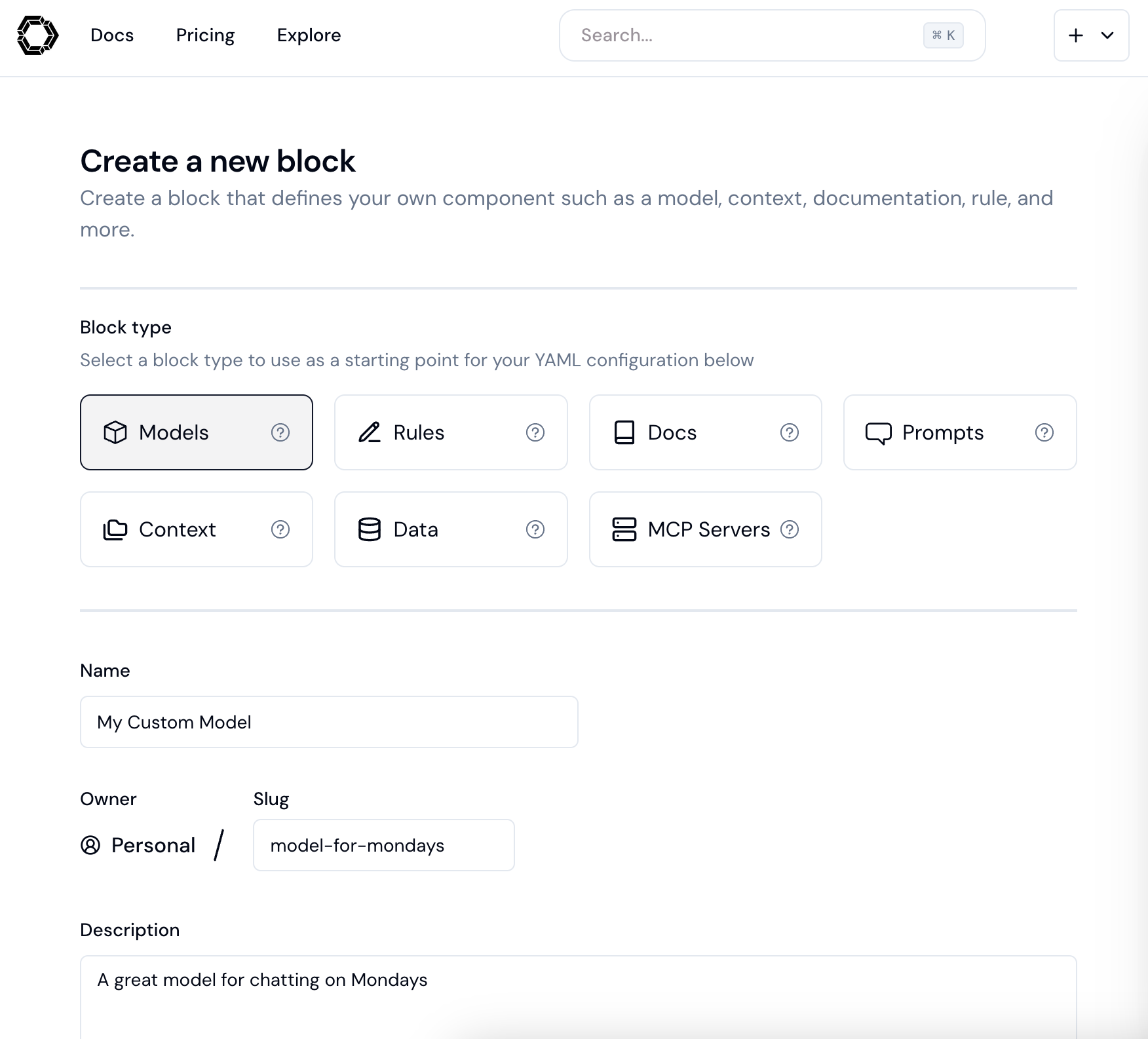
Once here, you’ll be able to 1) edit YAML configuration for the block and 2) change name, description, icon, etc. Clicking “Create block” will make this block available for use in an agent.
## How to Create a Block from Scratch
To create a block from scratch, you will need to click “New block” in the top bar.
 After filling out information on the block, you will want to create a block following the `config.yaml` [reference documentation](/reference). Refer to examples of blocks on [hub.gourmand.dev](https://hub.gourmand.dev/explore/models) and visit the [YAML Reference](/reference#complete-yaml-config-example) docs for more details.
 ### Block Inputs
Blocks can receive values, including secrets, as inputs through templating. For values that the user of the block needs to set, you can use template variables (e.g. `${{ inputs.API_KEY}}`). Then, the user can set `API_KEY: ${{ secrets.MY_API_KEY }}` in the `with` clause of their agent.
**Choosing between `secrets.` and `inputs.`**
When creating blocks for the hub:
* Use `${{ inputs.INPUT_NAME }}` in your block definition when you want users to be able to customize which secret is used
* Users will then map their own secrets using `${{ secrets.SECRET_NAME }}` in the `with` clause
For personal or single-use configurations, you can skip the inputs layer and reference `${{ secrets.SECRET_NAME }}` directly in your block.
### Block Inputs
Blocks can receive values, including secrets, as inputs through templating. For values that the user of the block needs to set, you can use template variables (e.g. `${{ inputs.API_KEY}}`). Then, the user can set `API_KEY: ${{ secrets.MY_API_KEY }}` in the `with` clause of their agent.
**Choosing between `secrets.` and `inputs.`**
When creating blocks for the hub:
* Use `${{ inputs.INPUT_NAME }}` in your block definition when you want users to be able to customize which secret is used
* Users will then map their own secrets using `${{ secrets.SECRET_NAME }}` in the `with` clause
For personal or single-use configurations, you can skip the inputs layer and reference `${{ secrets.SECRET_NAME }}` directly in your block.