> ## Documentation Index
> Fetch the complete documentation index at: https://docs.gourmand.dev/llms.txt
> Use this file to discover all available pages before exploring further.
# Quick Start
> Get started with Gobi's Agent mode to automatically implement code changes, fix bugs, and run commands using AI-powered tools that can modify your codebase based on natural language instructions
Agent mode equips the Chat model with the tools needed to handle a wide range of coding tasks, allowing the model to make decisions and save you the work of manually finding context and performing actions.
*Learn and discuss without changing code.*
**Mental Model:** Talking to a knowledgeable colleague
**Best For:** Explaining concepts, comparing approaches, code review discussions.
*Safely explore and plan with read-only tools.*
**Mental Model:** Architect surveying before renovation
**Best For:** Understanding a codebase, bug investigation, planning implementations.
*Make actual changes with full tool access.*
**Mental Model:** Contractor executing approved blueprints
**Best For:** Implementing features, fixing bugs, running tests and commands.
### How to Use Agent Mode
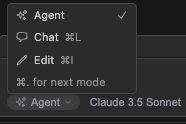
You can switch to `Agent` in the mode selector below the chat input box. The mode selector offers three options:
* **Chat mode**: No tools available, pure conversation
* **Plan mode**: Read-only tools for safe exploration and planning
* **Agent mode**: All tools available for making changes
 If Agent mode or Plan mode is disabled with a `Not Supported` message, the selected
model or provider doesn't support tools, or Gobi doesn't yet support tools
with it. See [Model Blocks](/customization/models) for more information.
Use the keyboard shortcut `Cmd/Ctrl + .` to quickly cycle between modes.
### How to Chat with Agent mode
Agent mode lives within the same interface as [Chat](/ide-extensions/chat/how-it-works) mode, so the same [input](/ide-extensions/chat/quick-start#how-to-start-a-conversation) is used to send messages and you can still use the same manual methods of providing context, such as [`@` context providers](/ide-extensions/chat/quick-start#how-to-use--for-additional-context) or adding [highlighted code from the editor](/ide-extensions/chat/quick-start#how-to-include-code-context).
#### How to Use Natural Language with Agent mode
With Agent mode, you can provide natural language instruction and let the model do the work. As an example, you might say
> Set the @typescript-eslint/naming-convention rule to "off" for all eslint configurations in this project
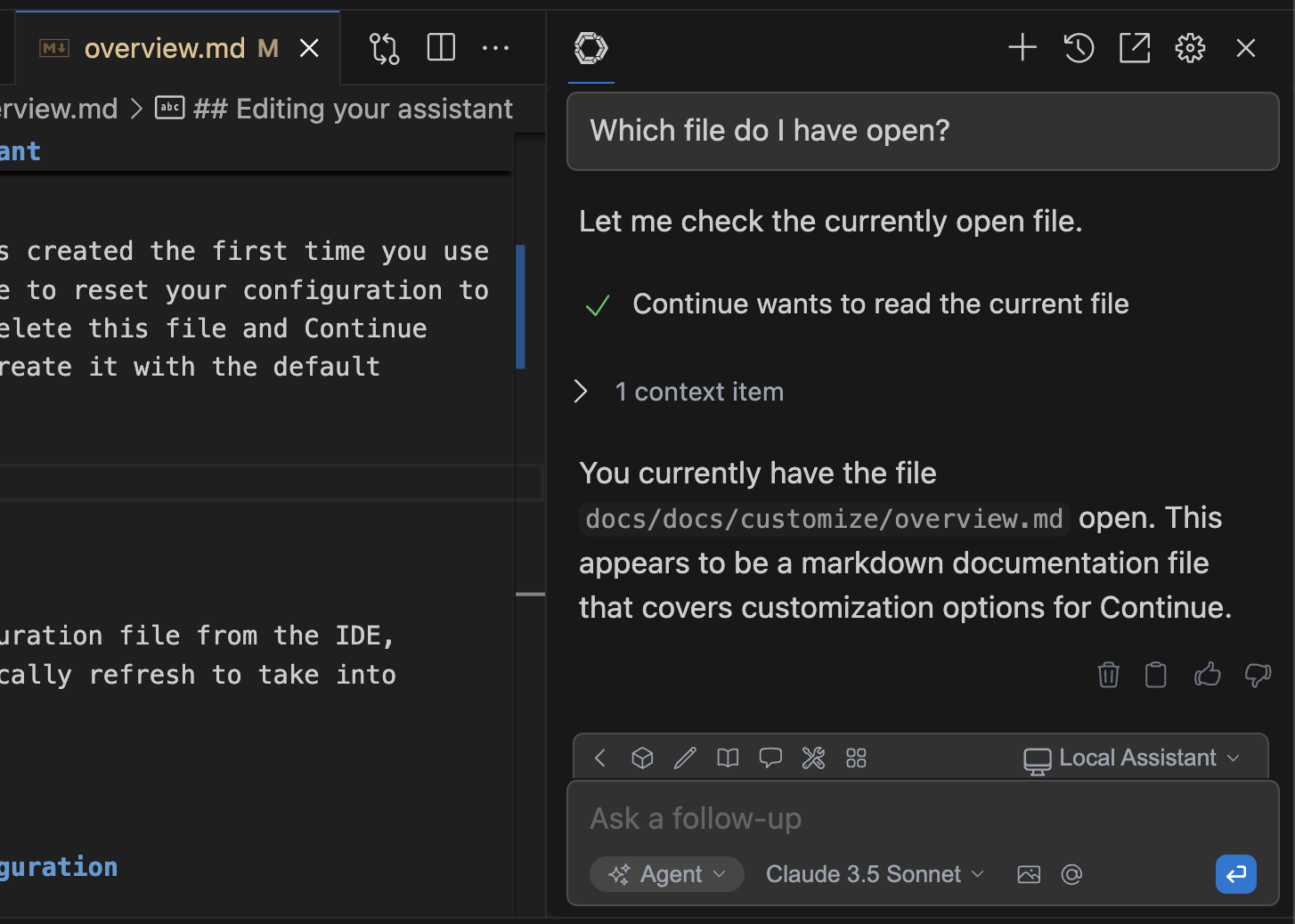
Agent mode will then decide which tools to use to get the job done.
## How to Give Agent Mode Permission
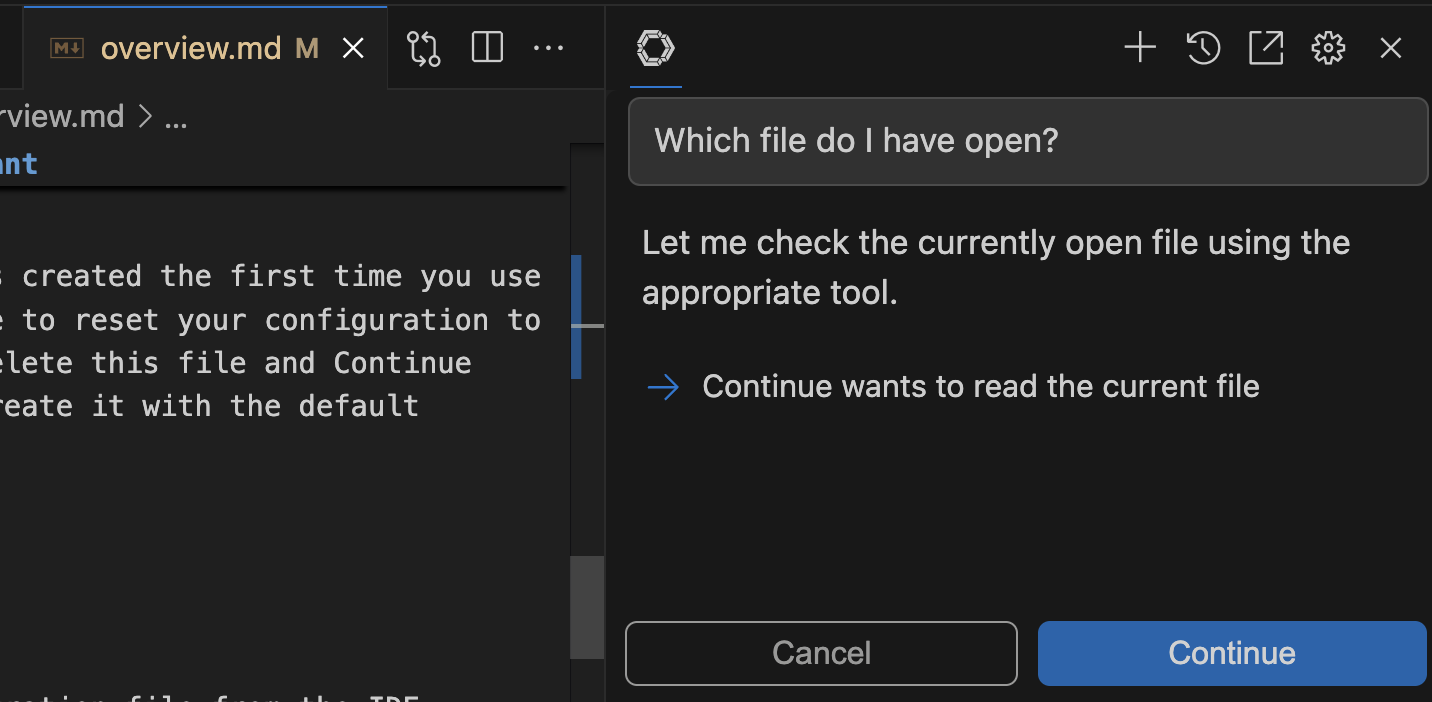
By default, Agent mode will ask permission when it wants to use a tool. Click `Gobi` to allow Agent mode to proceed with the tool call or `Cancel` to reject it.
If Agent mode or Plan mode is disabled with a `Not Supported` message, the selected
model or provider doesn't support tools, or Gobi doesn't yet support tools
with it. See [Model Blocks](/customization/models) for more information.
Use the keyboard shortcut `Cmd/Ctrl + .` to quickly cycle between modes.
### How to Chat with Agent mode
Agent mode lives within the same interface as [Chat](/ide-extensions/chat/how-it-works) mode, so the same [input](/ide-extensions/chat/quick-start#how-to-start-a-conversation) is used to send messages and you can still use the same manual methods of providing context, such as [`@` context providers](/ide-extensions/chat/quick-start#how-to-use--for-additional-context) or adding [highlighted code from the editor](/ide-extensions/chat/quick-start#how-to-include-code-context).
#### How to Use Natural Language with Agent mode
With Agent mode, you can provide natural language instruction and let the model do the work. As an example, you might say
> Set the @typescript-eslint/naming-convention rule to "off" for all eslint configurations in this project
Agent mode will then decide which tools to use to get the job done.
## How to Give Agent Mode Permission
By default, Agent mode will ask permission when it wants to use a tool. Click `Gobi` to allow Agent mode to proceed with the tool call or `Cancel` to reject it.
 You can use tool policies to exclude or make usage automatic for specific tools. See [MCP Tools](/customization/mcp-tools) for more background.
## How to View Tool Responses
Any data returned from a tool call is automatically fed back into the model as a context item. Most errors are also caught and returned, so that Agent mode can decide how to proceed.
You can use tool policies to exclude or make usage automatic for specific tools. See [MCP Tools](/customization/mcp-tools) for more background.
## How to View Tool Responses
Any data returned from a tool call is automatically fed back into the model as a context item. Most errors are also caught and returned, so that Agent mode can decide how to proceed.