> ## Documentation Index
> Fetch the complete documentation index at: https://docs.gourmand.dev/llms.txt
> Use this file to discover all available pages before exploring further.

# Install

> Get Gobi installed in your favorite IDE in just a few steps.

<iframe width="100%" height="400" src="https://www.youtube.com/embed/gjekTru4Cg4" title="Install Gobi VS Code Extension" frameborder="0" allow="accelerometer; autoplay; clipboard-write; encrypted-media; gyroscope; picture-in-picture" allowfullscreen />

<Tabs>
  <Tab title="VS Code">
    <Steps>
      <Step title="Install from Marketplace">
        Click `Install` on the [Gobi extension page in the Visual Studio Marketplace](https://marketplace.visualstudio.com/items?itemName=Gourmand.gobi)
      </Step>

      <Step title="Install in VS Code">
        This will open the Gobi extension page in VS Code, where you will need to
        click `Install` again
      </Step>

      <Step title="Move to Right Sidebar">
        The Gobi logo will appear on the left sidebar. For a better experience, move Gobi to the right sidebar
      </Step>

      <Step title="Sign In">
        [Sign in to the hub](https://auth.gourmand.dev/) to get started
      </Step>
    </Steps>

    <Info>
      If you have any problems, see the [troubleshooting guide](/troubleshooting) or
      ask for help in [our Discord](https://discord.gg/TODO)
    </Info>
  </Tab>

  <Tab title="JetBrains">
    <Steps>
      <Step title="Open Settings">
        Open your JetBrains IDE and open **Settings** using `Ctrl` + `Alt` + `S`
      </Step>

      <Step title="Find Gobi Plugin">
        Select **Plugins** on the sidebar and search for "Gobi" in the marketplace
      </Step>

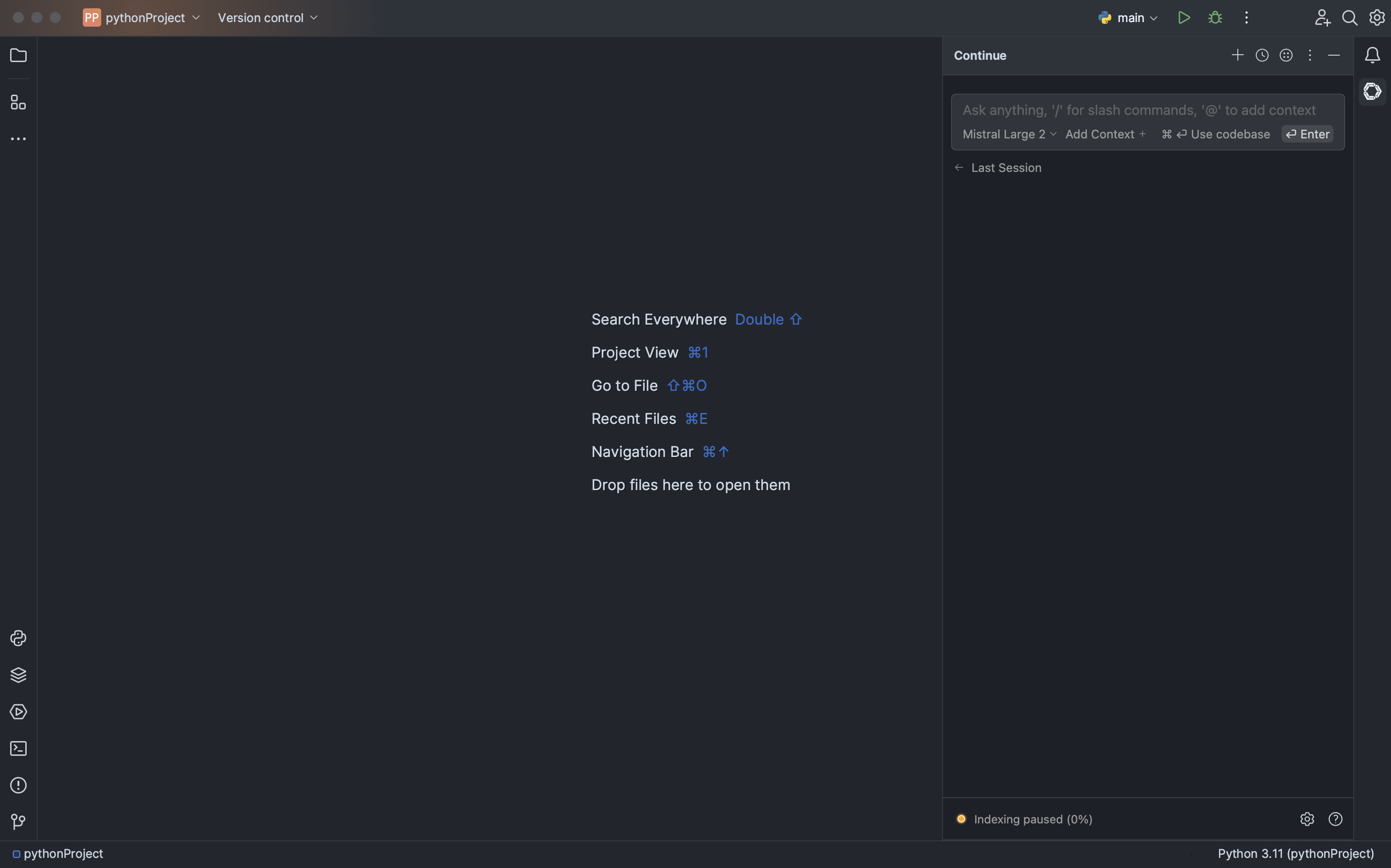
      <Step title="Install Plugin">
        Click `Install`, which will cause the Gobi logo to show up on the right toolbar

        <img src="https://mintcdn.com/gourmand/kkqYf7UwBaqLLOdV/images/getting-started/images/jetbrains-getting-started-d62b7edee1cdd58508c5075faf285955.png?fit=max&auto=format&n=kkqYf7UwBaqLLOdV&q=85&s=95979d95da7fd66b6b89d3b074c8fb26" alt="jetbrains-getting-started.png" width="3024" height="1888" data-path="images/getting-started/images/jetbrains-getting-started-d62b7edee1cdd58508c5075faf285955.png" />
      </Step>

      <Step title="Sign In">
        [Sign in to the hub](https://auth.gourmand.dev/) to get started
      </Step>
    </Steps>

    <Info>
      If you have any problems, see the [troubleshooting guide](/troubleshooting) or
      ask for help in [our Discord](https://discord.com/invite/EfJEfdFnDQ)
    </Info>
  </Tab>
</Tabs>

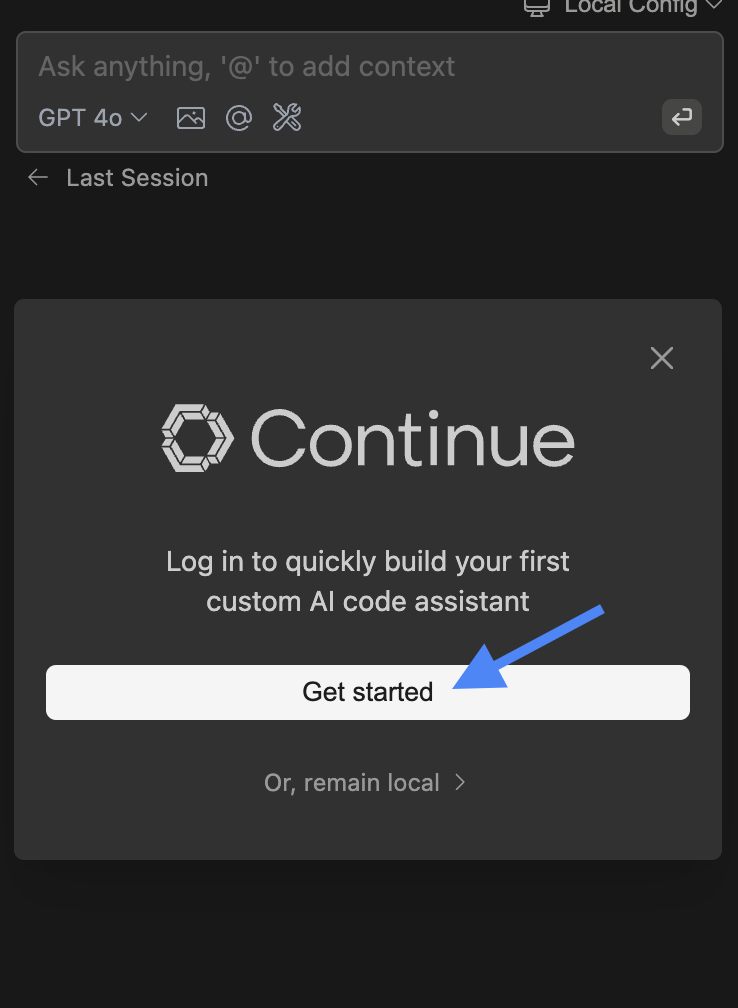
## Signing in

Click "Get started" to sign in to the hub and get started.
<img src="https://mintcdn.com/gourmand/kkqYf7UwBaqLLOdV/images/getting-started/images/hub-onboarding-card-81abd457b6d131c4b0aa89a5a6d647d3.png?fit=max&auto=format&n=kkqYf7UwBaqLLOdV&q=85&s=5bfe4af54e029cdeb970b6ee875057eb" alt="Hub Onboarding in the Extension" width="738" height="1008" data-path="images/getting-started/images/hub-onboarding-card-81abd457b6d131c4b0aa89a5a6d647d3.png" />