> ## Documentation Index
> Fetch the complete documentation index at: https://docs.gourmand.dev/llms.txt
> Use this file to discover all available pages before exploring further.
# Troubleshooting
> Comprehensive guide to resolving common issues with Gobi, including logging, keyboard shortcuts, networking problems, model capabilities, and extension configuration troubleshooting
1. [Check the logs](#check-the-logs)
2. [Try the latest pre-release](#download-the-latest-pre-release)
3. [Download an older version](#download-an-older-version)
4. [Resolve keyboard shortcut issues](#keyboard-shortcuts-not-resolving)
5. [Check FAQs for common issues](/faqs)
## Check the logs
To solve many problems, the first step is reading the logs to find the relevant error message. To do this, follow these steps:
### VS Code
#### Console logs
In order to view debug logs, which contain extra information, click the
dropdown at the top that says "Default levels" and select "Verbose".
1. `cmd` + `shift` + `P` for MacOS or `ctrl`
* `shift` + `P` for Windows
2. Search for and then select "Developer: Toggle Developer Tools"
3. This will open the [Chrome DevTools window](https://developer.chrome.com/docs/devtools/)
4. Select the `Console` tab
5. Read the console logs
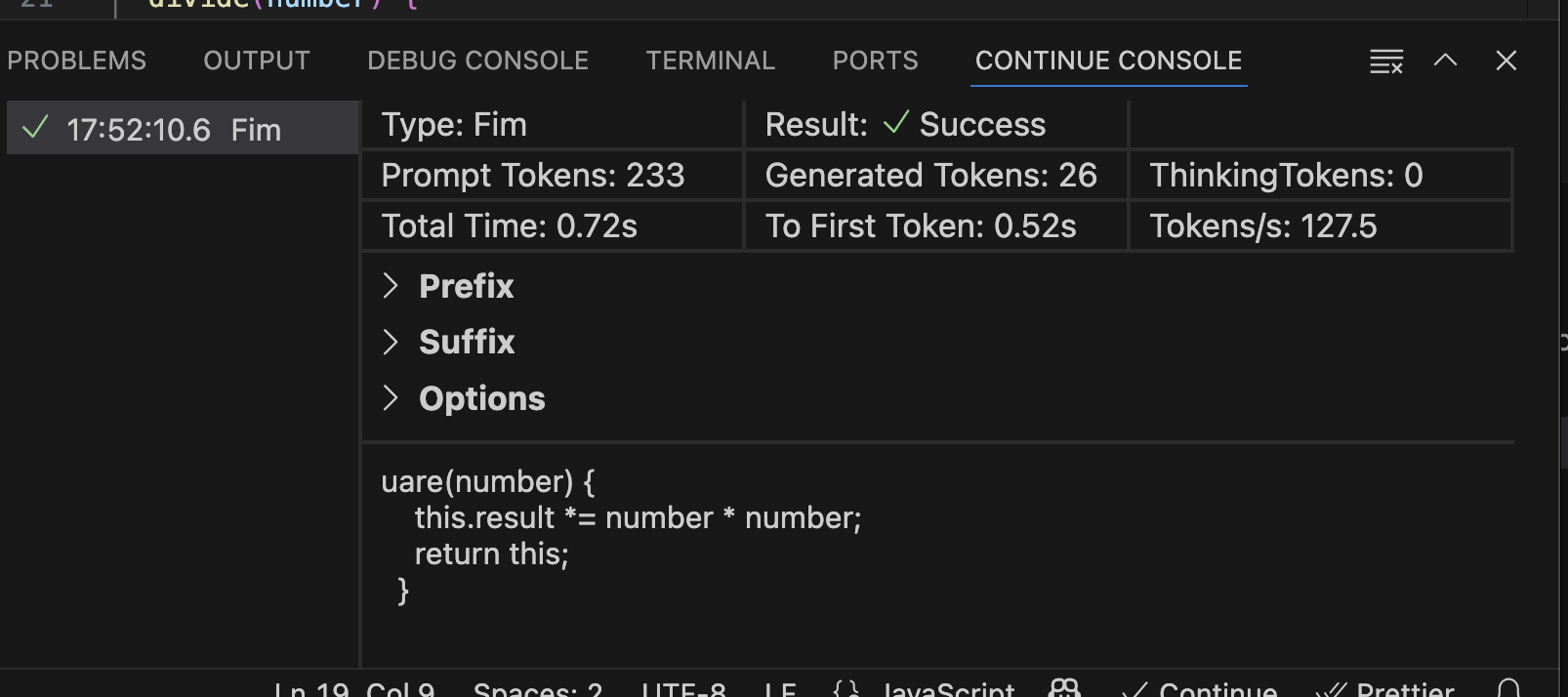
#### Prompt Logs (Gobi Console)
To view prompt logs/analytics, you can enable the Gobi Console.
1. Open VS Code settings (`cmd/ctrl` + `,`)
2. Search for the setting "Gobi: Enable Console" and enable it
3. Reload the window
4. Open the Gobi Console by using the command palette (`cmd/ctrl` + `shift` + `P`) and searching for "Gobi: Focus on Gobi Console View"
 ### JetBrains
Open `~/.gobi/logs/core.log` to view the logs for the Gobi plugin. The most recent logs are found at the bottom of the file.
Some JetBrains-related logs may also be found by clicking "Help" > "Show Log in Explorer/Finder".
## Download the latest pre-release
### VS Code
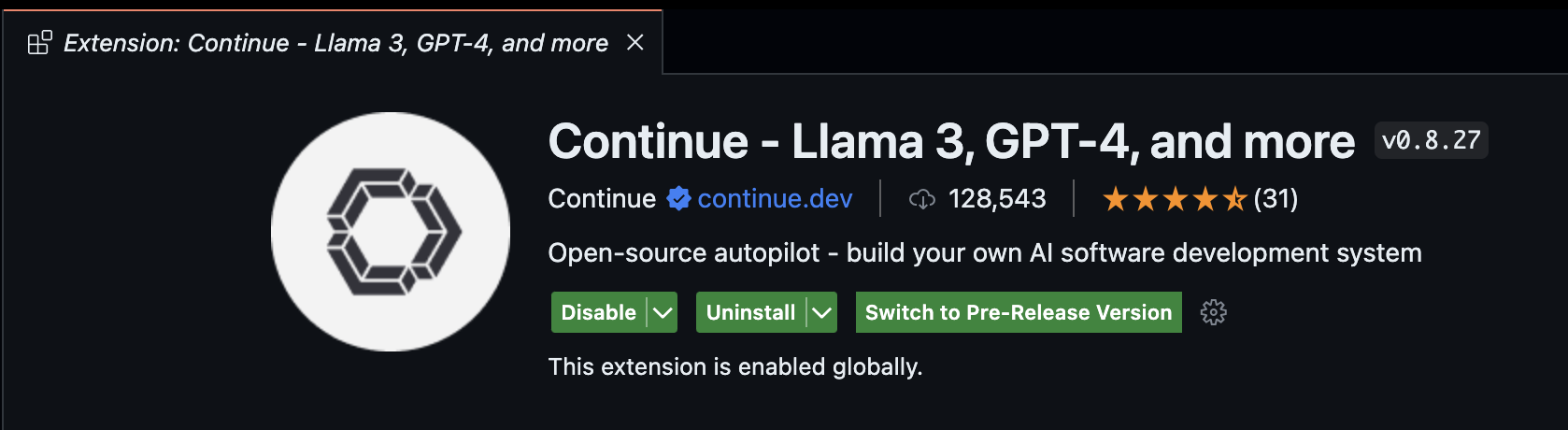
We are constantly making fixes and improvements to Gobi, but the latest changes remain in a "pre-release" version for roughly a week so that we can test their stability. If you are experiencing issues, you can try the pre-release by going to the Gobi extension page in VS Code and selecting "Switch to Pre-Release" as shown below.
### JetBrains
Open `~/.gobi/logs/core.log` to view the logs for the Gobi plugin. The most recent logs are found at the bottom of the file.
Some JetBrains-related logs may also be found by clicking "Help" > "Show Log in Explorer/Finder".
## Download the latest pre-release
### VS Code
We are constantly making fixes and improvements to Gobi, but the latest changes remain in a "pre-release" version for roughly a week so that we can test their stability. If you are experiencing issues, you can try the pre-release by going to the Gobi extension page in VS Code and selecting "Switch to Pre-Release" as shown below.
 ### JetBrains
On JetBrains, the "pre-release" happens through their Early Access Program (EAP) channel. To download the latest EAP version, enable the EAP channel:
1. Open JetBrains settings (`cmd/ctrl` + `,`) and go to "Plugins"
2. Click the gear icon at the top
3. Select "Manage Plugin Repositories..."
4. Add "[https://plugins.jetbrains.com/plugins/eap/list](https://plugins.jetbrains.com/plugins/eap/list)" to the list
5. You'll now always be able to download the latest EAP version from the marketplace
## Download an Older Version
If you've tried everything, reported an error, know that a previous version was working for you, and are waiting to hear back, you can try downloading an older version of the extension.
For VS Code, All versions are hosted on the Open VSX Registry [here](https://open-vsx.org/extension/Gobi/gobi). Once you've downloaded the extension, which will be a .vsix file, you can install it manually by following the instructions [here](https://code.visualstudio.com/docs/editor/extension-gallery#_install-from-a-vsix).
You can find older versions of the JetBrains extension on their [marketplace](https://plugins.jetbrains.com/plugin/22707-gobi), which will walk you through installing from disk.
## Keyboard shortcuts not resolving
If your keyboard shortcuts are not resolving, you may have other commands that are taking precedence over the Gobi shortcuts. You can see if this is the case, and change your shortcut mappings, in the configuration of your IDE.
* [VSCode keyboard shortcuts docs](https://code.visualstudio.com/docs/getstarted/keybindings)
* [IntelliJ keyboard shortcut docs](https://www.jetbrains.com/help/idea/configuring-keyboard-and-mouse-shortcuts.html)
## Still having trouble?
You can also join our Discord community [here](https://discord.gg/TODO) for additional support and discussions. Alternatively, you can create a GitHub issue [here](https://github.com/gourmand/gobi/issues/new?assignees=\&labels=bug\&projects=\&template=bug-report-%F0%9F%90%9B.md\&title=), providing details of your problem, and we'll be able to help you out more quickly.
### JetBrains
On JetBrains, the "pre-release" happens through their Early Access Program (EAP) channel. To download the latest EAP version, enable the EAP channel:
1. Open JetBrains settings (`cmd/ctrl` + `,`) and go to "Plugins"
2. Click the gear icon at the top
3. Select "Manage Plugin Repositories..."
4. Add "[https://plugins.jetbrains.com/plugins/eap/list](https://plugins.jetbrains.com/plugins/eap/list)" to the list
5. You'll now always be able to download the latest EAP version from the marketplace
## Download an Older Version
If you've tried everything, reported an error, know that a previous version was working for you, and are waiting to hear back, you can try downloading an older version of the extension.
For VS Code, All versions are hosted on the Open VSX Registry [here](https://open-vsx.org/extension/Gobi/gobi). Once you've downloaded the extension, which will be a .vsix file, you can install it manually by following the instructions [here](https://code.visualstudio.com/docs/editor/extension-gallery#_install-from-a-vsix).
You can find older versions of the JetBrains extension on their [marketplace](https://plugins.jetbrains.com/plugin/22707-gobi), which will walk you through installing from disk.
## Keyboard shortcuts not resolving
If your keyboard shortcuts are not resolving, you may have other commands that are taking precedence over the Gobi shortcuts. You can see if this is the case, and change your shortcut mappings, in the configuration of your IDE.
* [VSCode keyboard shortcuts docs](https://code.visualstudio.com/docs/getstarted/keybindings)
* [IntelliJ keyboard shortcut docs](https://www.jetbrains.com/help/idea/configuring-keyboard-and-mouse-shortcuts.html)
## Still having trouble?
You can also join our Discord community [here](https://discord.gg/TODO) for additional support and discussions. Alternatively, you can create a GitHub issue [here](https://github.com/gourmand/gobi/issues/new?assignees=\&labels=bug\&projects=\&template=bug-report-%F0%9F%90%9B.md\&title=), providing details of your problem, and we'll be able to help you out more quickly.