

Setup
1
Sign in or sign up
Visit the Agent Router Service portal and create an account to get your API key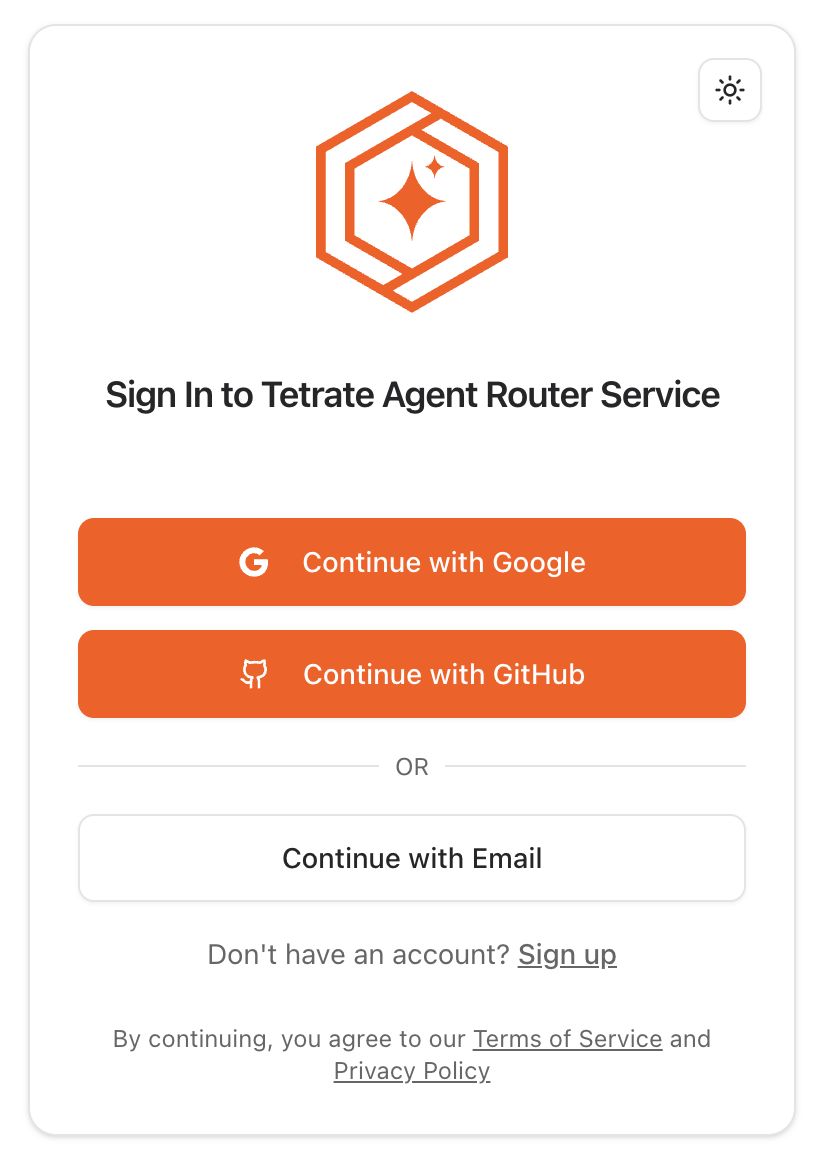
2
Get your API key
Go to the API keys page to get your key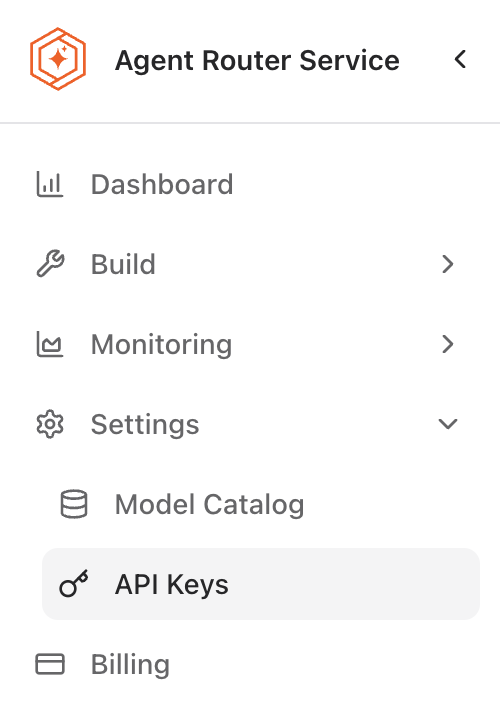
3
Configure Gobi
- Choose a configuration method below.
- If you use the Gobi VS Code extension, install version
>=1.2.3.
Quickstart with Gobi Hub
Fastest way: use preconfigured models from Tetrate on Gobi Hub1
Browse models
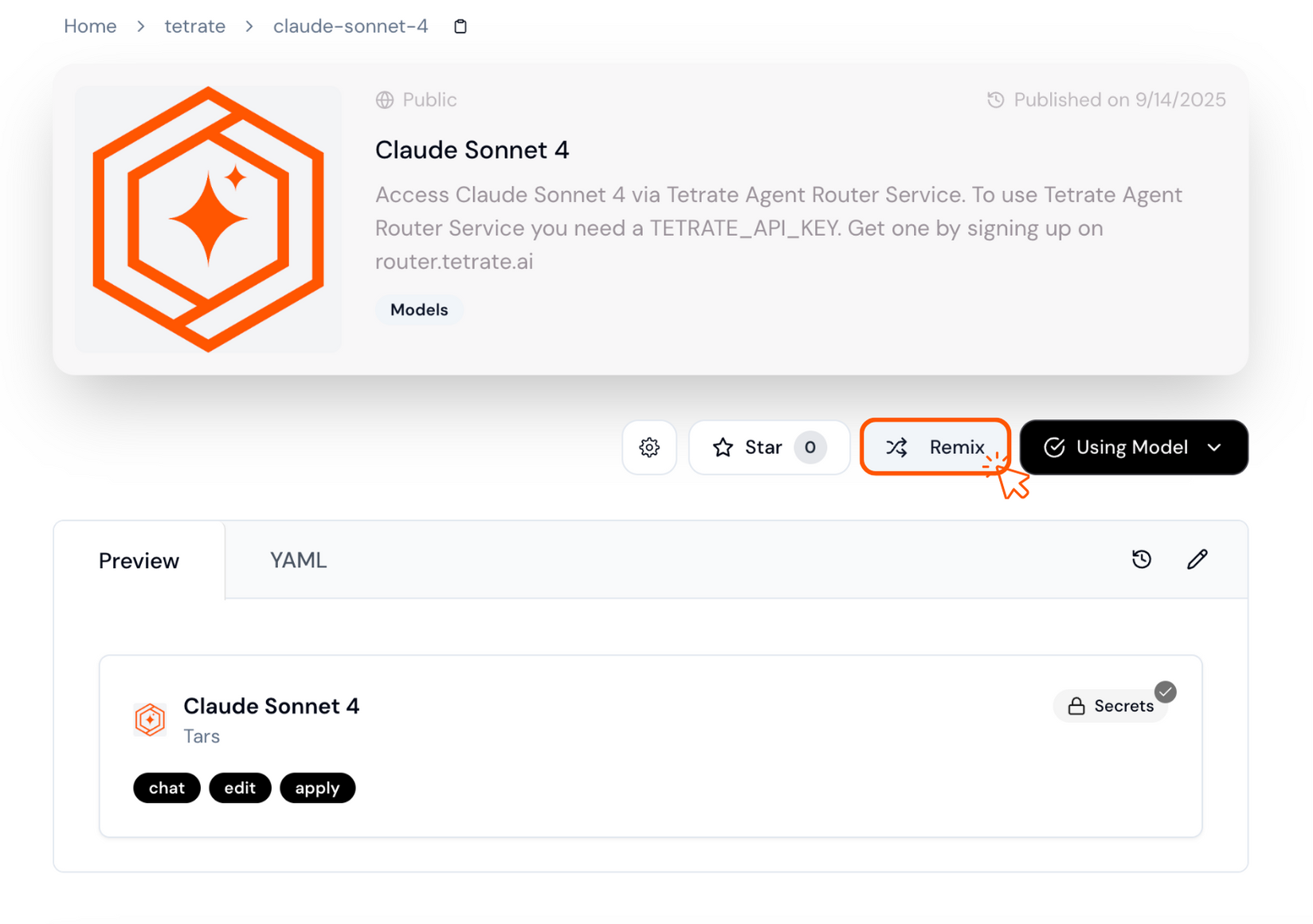
Open Tetrate on Gobi Hub and pick a model (e.g., Claude Sonnet 4)
2
Use or remix
Click “Use Model”, or “Remix” to change the model ID if needed
3
Add your API key
Add your API key to Gobi. See adding secrets in Gobi Hub and managing local secrets in the FAQ
If a model is missing, remix a similar one and set the
model field to the target ID.Configuration Methods
In Local Agent Configuration
Use a Tetrate model block from the Hub or define it directly in your local agent configuration.
Gobi Hub
Use a Tetrate model block from the Hub or define your own on the Hub.
Using Local Model Blocks
Create a local model block for reuse across agents without publishing it to the Hub.
Configuration Examples
Click a tab to see an example.
- In Local Agent Configuration
- Gobi Hub
- Using Local Model Blocks
When to use: Simple local setups (like using the VS Code extension) when you don’t need shared or published blocks.Use a Tetrate model block from the Hub in your local agent configuration:Or define the model directly:
~/.gobi/config.yaml
~/.gobi/config.yaml
Troubleshooting Common Issues
Invalid API key
Verify your API key is active and has no extra spaces.
Model not found
Confirm the model ID matches the Tetrate catalog.
Slow responses
Check your network or try a less-loaded model. Contact Tetrate support if issues persist.
Configuration not loading
Validate YAML syntax and review error messages in Gobi. If using Hub, ensure the block is published.
Join the Community
Connect with Tetrate and other builders for help and discussion.Join the Tetrate Community
Get answers, insights, and best practices for secure, scalable infrastructure