

Change Your Model Provider
Gobi allows you to choose your favorite or even add multiple model providers. This allows you to use different models for different tasks, or to try another model if you’re not happy with the results from your current model. Gobi supports all of the popular model providers, including OpenAI, Anthropic, Microsoft/Azure, Mistral, and more. You can even self host your own model provider if you’d like. Learn more about model providers.Select Different Models for Specific Tasks
Different Gobi features can use different models. We call these model roles. For example, you can use a different model for Chat mode than you do for Autocomplete. Learn more about model roles.Create a Slash Command
Slash commands allow you to easily add custom prompts to Gobi. Learn more about slash commands.Call External Tools and Functions
Unchain your LLM with the power of tools using Agent mode. Add custom tools using MCP Servers Whatever you choose, you’ll probably start by editing your configuration.Edit Your Configuration
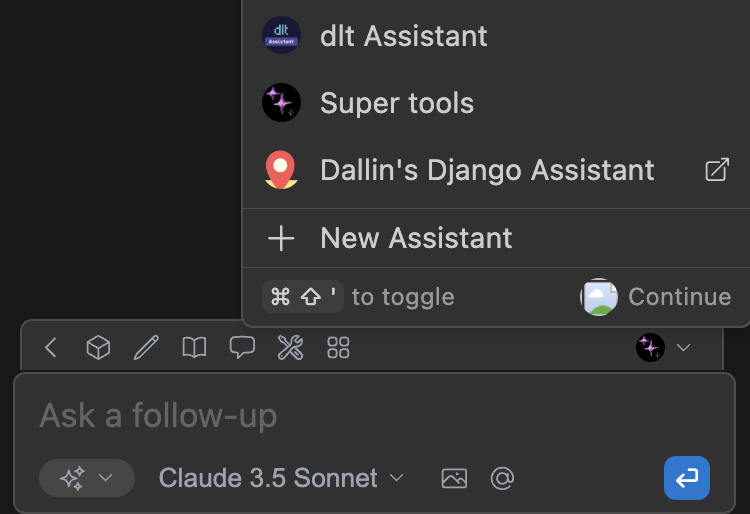
You can easily access your configuration from the Gobi Chat sidebar. Open the sidebar by pressingcmd/ctrl + L (VS Code) or cmd/ctrl + J (JetBrains) and click the Agent selector above the main chat input. Then, you can hover over an agent and click the new window (hub agents) or gear (local agents) icon.
Manage Your Configuration
- See Editing Hub Configurations for more details on managing your hub configuration
- See the Config Deep Dive for more details on local configurations