

- Check the logs
- Try the latest pre-release
- Download an older version
- Resolve keyboard shortcut issues
- Check FAQs for common issues
Check the logs
To solve many problems, the first step is reading the logs to find the relevant error message. To do this, follow these steps:VS Code
Console logs
In order to view debug logs, which contain extra information, click the
dropdown at the top that says “Default levels” and select “Verbose”.
cmd+shift+Pfor MacOS orctrlshift+Pfor Windows
- Search for and then select “Developer: Toggle Developer Tools”
- This will open the Chrome DevTools window
- Select the
Consoletab - Read the console logs
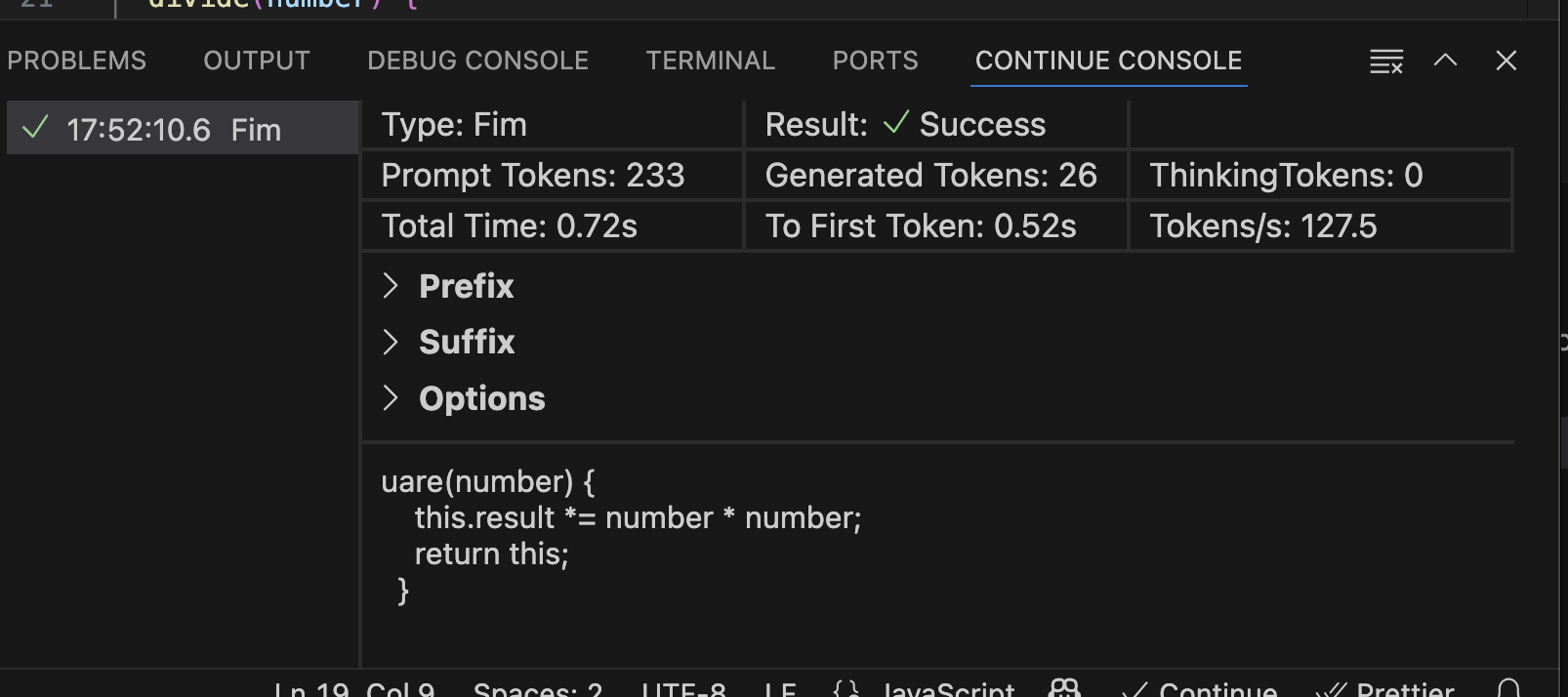
Prompt Logs (Gobi Console)
To view prompt logs/analytics, you can enable the Gobi Console.- Open VS Code settings (
cmd/ctrl+,) - Search for the setting “Gobi: Enable Console” and enable it
- Reload the window
- Open the Gobi Console by using the command palette (
cmd/ctrl+shift+P) and searching for “Gobi: Focus on Gobi Console View”
JetBrains
Open~/.gobi/logs/core.log to view the logs for the Gobi plugin. The most recent logs are found at the bottom of the file.
Some JetBrains-related logs may also be found by clicking “Help” > “Show Log in Explorer/Finder”.
Download the latest pre-release
VS Code
We are constantly making fixes and improvements to Gobi, but the latest changes remain in a “pre-release” version for roughly a week so that we can test their stability. If you are experiencing issues, you can try the pre-release by going to the Gobi extension page in VS Code and selecting “Switch to Pre-Release” as shown below.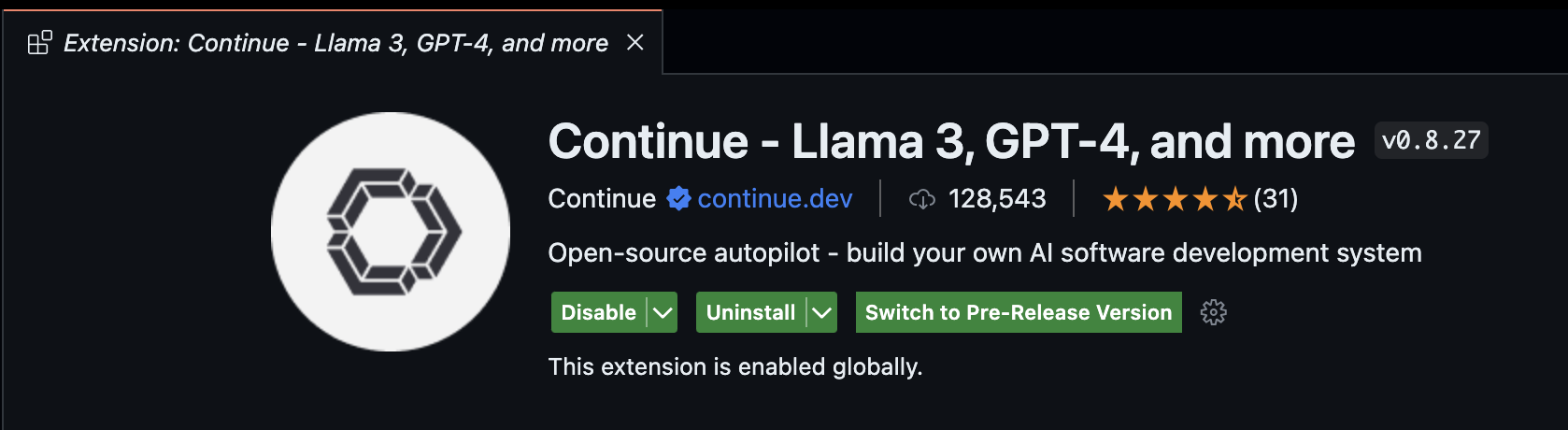
JetBrains
On JetBrains, the “pre-release” happens through their Early Access Program (EAP) channel. To download the latest EAP version, enable the EAP channel:- Open JetBrains settings (
cmd/ctrl+,) and go to “Plugins” - Click the gear icon at the top
- Select “Manage Plugin Repositories…”
- Add “https://plugins.jetbrains.com/plugins/eap/list” to the list
- You’ll now always be able to download the latest EAP version from the marketplace